
"Sent on Behalf Of" or "via" in Emails: What It Means and How to Fix
Your site's emails show "sent on behalf of" in Outlook or "via" in Gmail. It means the message isn't tied to your From address. Here's how to fix it for good.

You sent yourself a test from your contact form, and Outlook shows "info@yoursite.com sent on behalf of someone@otherdomain.com." Or Gmail shows your sender name with a little "via" and a strange domain next to it. Your customers see the same thing, and it looks like phishing.
Here's the short version: you didn't break anything, and it's fixable. Outlook's "on behalf of" and Gmail's "via" both mean the email says it's from one domain but went out through another. The fix is to send from an address on your own domain, and add the DNS records that prove the email really came from you. Jump to the steps below if you just want those.
What you're seeing, in plain words
Every email has a From address, the one people see. It also carries information about who actually sent it. When those two don't line up, mail apps add a note so the reader knows.
Outlook words it as "sent on behalf of." Gmail words it as "via." Same complaint, different accent. Google explains its version in Gmail's help on who sent a message.
Think of a letter with your return address on the envelope, but stamped at a post office across the country. Nothing is wrong with the letter. It just looks odd, and a careful reader gets suspicious.
On a WordPress site, this usually happens for one of two reasons:
- Your From address is on one domain (say, yoursite.com), but the email goes out through a server or service that identifies itself as a different domain.
- Your From address is a free webmail address, or an address on a domain you haven't authenticated with whatever is doing the sending.
Either way, the receiving app can't confirm that the sender is allowed to use your From address. So it tells the reader.
Why it matters more than it looks
It's easy to shrug at a small label. Don't. Since February 2024, Gmail and Yahoo require senders to authenticate their mail, and a mismatched label is often the visible sign that authentication is missing. Mail like that is more likely to get filtered or blocked, and you usually hear about it from a customer who never got their receipt.
Many hosts also block or throttle outbound PHP mail, which is how WordPress sends by default. If your order emails or form notifications are already going missing, check our post on password reset emails not arriving. The cause is often the same.
Fix 1: Send from an address on your own domain
This is the one to do first. Check what your From address is set to in your form plugin, your store settings and WordPress itself.
If it says something like yourname@gmail.com or an address on a domain you don't control, change it to an address on your site's domain, such as hello@yoursite.com. The address doesn't need a real mailbox behind it for sending to work, though you'll want one so replies go somewhere.
A free webmail address can't be proven to be yours by your site's DNS, because you don't control that domain's DNS. That is why those From addresses so often get the label.
Fix 2: Authenticate your domain
Now for the part that makes the label go away. You add a few records to your domain's DNS settings, which is the public list of facts about your domain. These records let the receiving app check your email's ID at the door.
There are two you need (our SPF, DKIM and DMARC explainer goes deeper):
- SPF: a record listing who is allowed to send email for your domain.
- DKIM: a record that lets the receiver check a digital signature on each message, like a signature on a check.
Two things trip people up. First, a domain can only have one SPF record. If you add a second, SPF breaks entirely, so edit the existing one instead. Second, the exact DKIM record depends on who sends your mail. With SendWP, the DKIM record is always a CNAME, never a TXT record. If someone's instructions tell you to paste a long TXT key, they're describing a different service.
DMARC is a third record that tells receivers what to do when checks fail. SendWP can tell you the most basic DMARC record to publish, and that's the extent of our DMARC help. We don't give policy advice or read DMARC reports.
DNS changes can take a while to show up, so don't panic if the label is still there right after you save. Send a fresh test later and look again.
Where SendWP fits
SendWP does this for you. You install the plugin, connect your site, and every email WordPress sends goes out through SendWP. That covers form notifications, WooCommerce receipts, password resets and the rest. We help you authenticate your domain, and the records you add are the ones that match how we send. The result is that your From address and your sending domain line up.
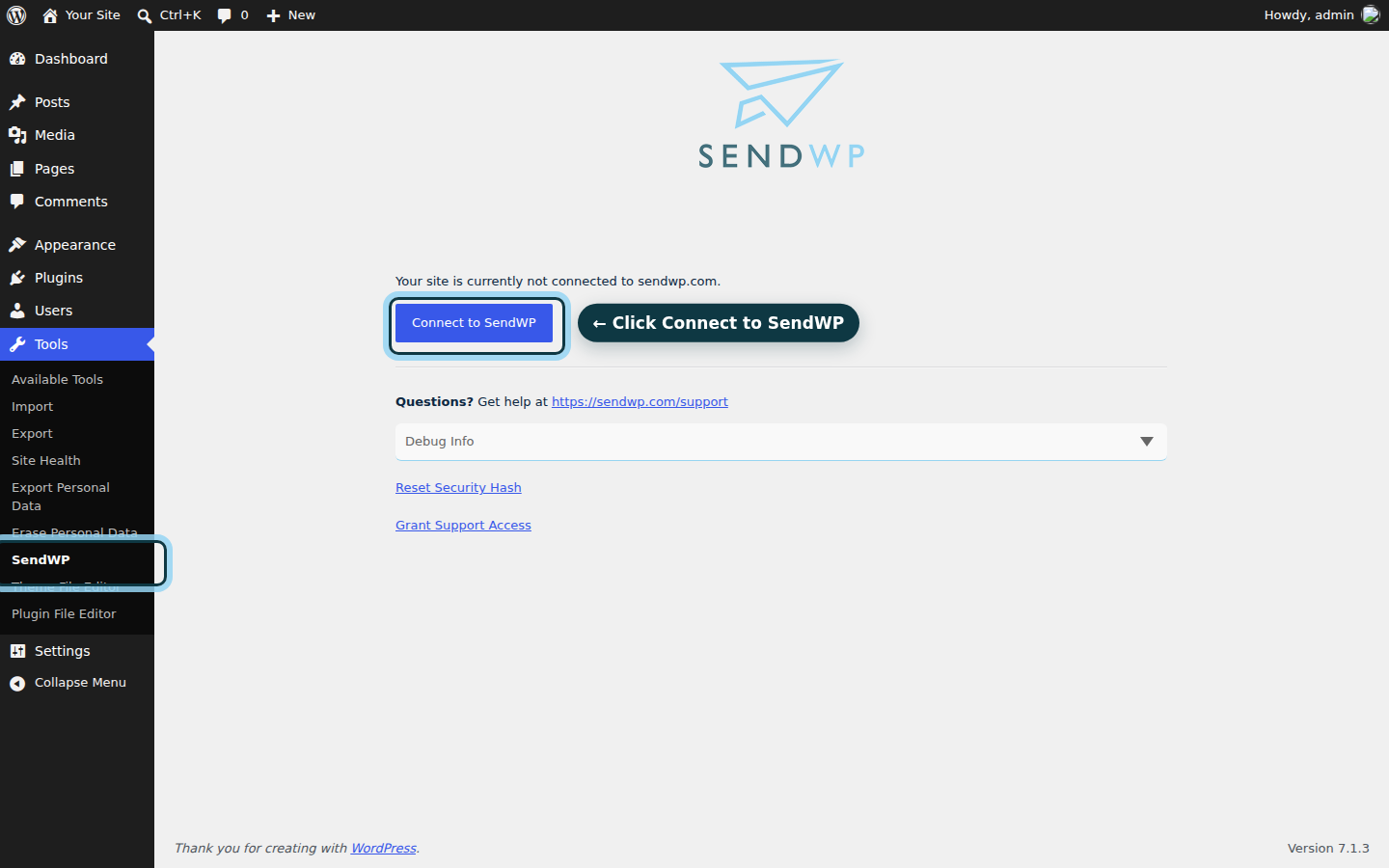
Until you add your DNS records and use a From address on your own domain, mail may not show your domain cleanly, so do both. Our documentation walks through the authentication steps in plain words, and the getting started guide covers the install and connect.
If you already use a sending service you're happy with, you don't need to switch. A free SMTP plugin pointed at that service is all you need, as long as you add its SPF and DKIM records for your domain. We believe SendWP is the better fit when you'd rather not become an email admin. You can see how we stack up in our comparison with WordPress's default mail.
Check that it worked
Send a test from your site to a Gmail address and an Outlook address if you can. Open the message and look at the sender line. Your own domain should show on its own, with no "via" and no "on behalf of." If it's still there, recheck that your From address is on your domain, and that your DNS records match what you were given.
Still stuck? Ask us and we'll take a look. You've got this.
When your email carries proper ID and a From address that matches, the odd labels go away and your customers stop wondering who sent the message. If you'd like that sorted today, get started with SendWP for $1 your first month.