
Microsoft 365 WordPress Email Stopped Working: 422 Unauthorized
Your WordPress email through Microsoft 365 fails with 422 Unauthorized. Here's where to read Microsoft's real reason, and four checks to fix it.

Your WordPress site was sending email through a Microsoft 365 mailbox, and then it stopped. The log says { "code": 422, "message": "Unauthorized", "errors": null }, or the same line with "Forbidden", and nothing else.
As far as you can tell, nothing changed on your side. Maybe you've already made a new client secret, reconnected the account and redone the whole setup, and it still fails.
Here's the short version: the 422 isn't Microsoft's error. It's a label the FluentSMTP plugin puts on every failed send through this connection. Microsoft's reason is written somewhere you can read it, and below are four things to check once you have.
The 422 is FluentSMTP's own label for any failed send
FluentSMTP's Outlook / Microsoft 365 connection gives every failure the code 422, whatever went wrong. So the number tells you the email was refused, and nothing about why.
The why is the message beside it. FluentSMTP's changelog for an August 2026 update lists this fix:
Fix: Outlook failures reporting a generic "Unauthorized" instead of the reason Microsoft gave
So update the plugin first. On the current version, in our testing, the log showed Microsoft's own wording next to the 422.
Read Microsoft's reason in the FluentSMTP email log
All four steps are inside WordPress.
- Update FluentSMTP to the current version.
- Go to Settings > FluentSMTP and click Email Logs.
- Click the Failed tab, then the eye icon on a failed email.
- Read the text under Why it failed.
For a fresh failure to read, click Send Test Email at the top right. If the test fails, the message appears under the form.
Four checks to work through, in the order you can rule them out
These are the causes we found in FluentSMTP's forum threads and Microsoft's documentation. Start with the first: it's the one the log can name for you.
The plugin's sign-in to the mailbox needs reconnecting
If Why it failed begins "Could not renew the Microsoft access token", the plugin couldn't renew the sign-in it holds for the mailbox, and the message tells you to reconnect.
In FluentSMTP's Settings, open the connection and authenticate with Microsoft again. FluentSMTP's setup guide gives the steps: click Authenticate with Office365, approve at Microsoft, paste the access code you get back into the Access Token field, and click Save Connection Settings.
The client secret in Microsoft Entra has expired
The client secret is the credential pasted into Application Client Secret at setup, and it has an end date. Microsoft's rule: "Client secret lifetime is limited to two years (24 months) or less." It recommends less than 12 months.
Once that date passes, the connection can't send. To check yours, you need the app registration: the entry in Microsoft Entra that lets the plugin sign in to the mailbox.
- Sign in to the Microsoft Entra admin center and open App registrations.
- Select your application and open Certificates & secrets.
- Look at the client secret listed there for when it expires.
- If it has expired, choose Client secrets > New client secret, set a description and an expiration, and select Add.
- Copy the new secret's Value, not its Secret ID, before you leave the page. Microsoft never displays it again.
- Paste it into Application Client Secret in FluentSMTP, reconnect as in the section above, and put the new expiry date in your calendar.
A secret that hasn't expired rules out only this cause. In one forum thread, the secret "was still valid for another 12 months" and email had stopped anyway.
The From address isn't the mailbox that signed in
This connection sends as the mailbox that authorized it. FluentSMTP's support puts it plainly: "Make sure the email address set as the From Email in FluentSMTP is the same Microsoft 365 account used to authorize the connection."
Set From Email on the connection to match. If you send from a shared mailbox, the account that signed in also needs an Exchange permission such as Send As, which an Exchange administrator assigns.
Email fails for one language on a multilingual site
If that's you, look at the callback address pasted into the Microsoft app at setup. In a thread from March 2026, email from the French side of a site failed with 422 Unauthorized, worked after a test email, then failed again some 8 to 12 hours later. The owner traced it to callback addresses carrying a language prefix, such as https://example.com/fr/wp-json/fluent-smtp/outlook_callback (example.com stands in for your domain).
FluentSMTP's support called that the most probable cause and advised adding the language-specific redirect URIs to the app registration. The thread doesn't say whether it worked.
Compare the App Callback URL on the connection form with the redirect URIs on your app registration's Authentication page. Capitals count: Microsoft treats redirect URIs as case-sensitive.
Is this Microsoft retiring Basic authentication for SMTP?
No. Microsoft has announced plans to retire Basic authentication for SMTP AUTH in Exchange Online, and that affects a site that signs in to Microsoft's SMTP server with a username and password.
FluentSMTP's Microsoft connection doesn't. It sends through Microsoft Graph, which Microsoft lists among the other options.
If your site does use SMTP with a password, the retirement timeline has been updated, and Microsoft's page links to its current announcement.
Why we'd move your site's email off the mailbox sign-in
Each check above rules out one cause. But look at what all four rest on: your website's email depends on one mailbox's sign-in and on a secret Microsoft makes you replace at least every two years.
In that thread, with the secret still valid, the owner redid the setup, then moved the site's email off the mailbox altogether. That's what we'd suggest too, and SendWP is where we'd move it. With SendWP, a paid service, your site's email goes out through SendWP instead of the Microsoft 365 mailbox, so there's no app registration, client secret or sign-in to renew.
Your mailbox keeps working for your own email. One caution before the DNS steps: a domain can have only one SPF record, so SendWP's entry goes into the one Microsoft 365 already uses. To move the site over:
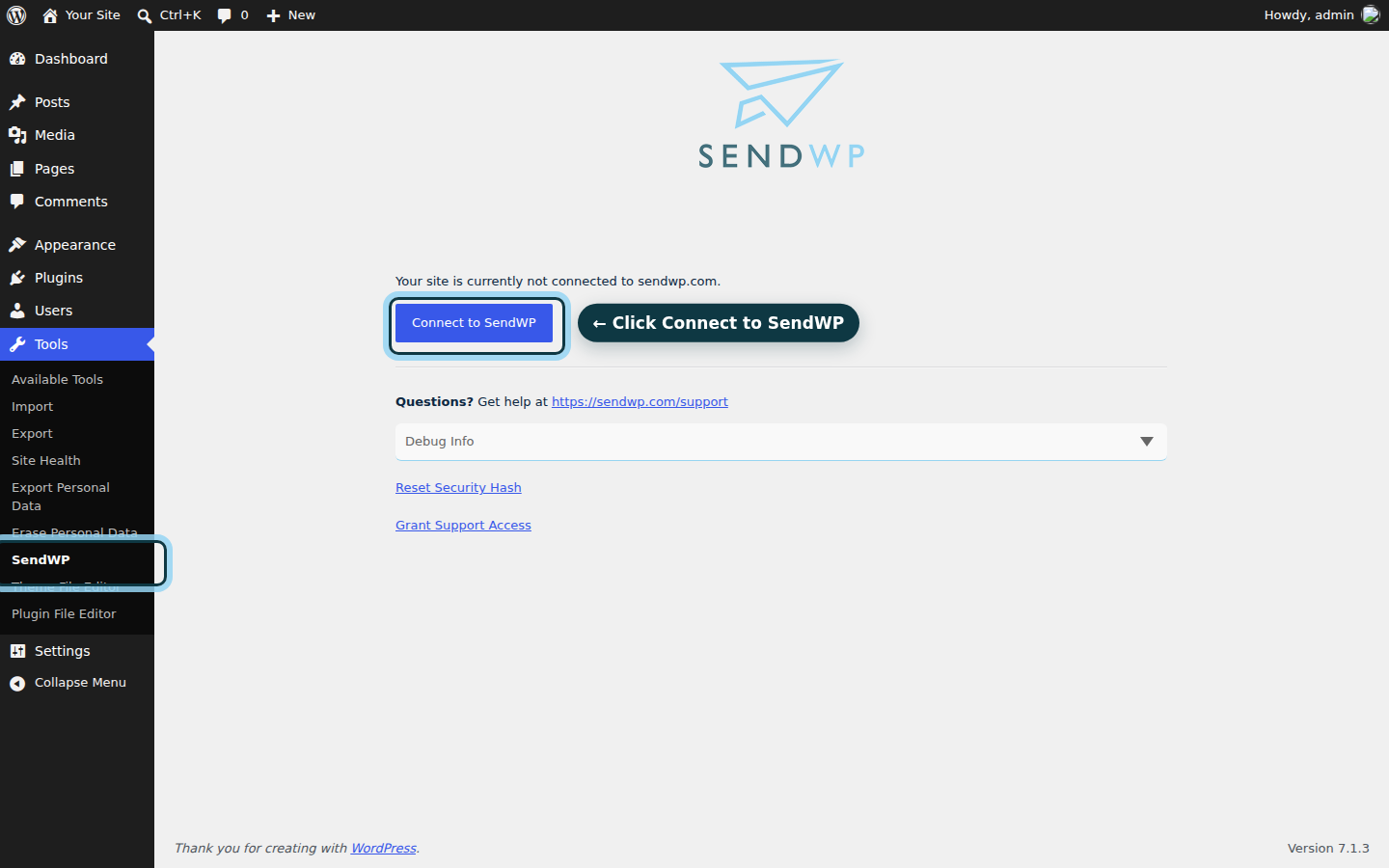
- Install the SendWP plugin and connect your site.
- Copy the SPF value from your SendWP account and add it to the SPF record you already have.
- Add SendWP's DKIM record, which is a CNAME, at your DNS host.
- Deactivate FluentSMTP, because while it's active it handles your site's email itself.
Read Microsoft's reason before you rebuild the connection again
You came here with a 422 that explained nothing. Now you know where the reason is written, and four things to rule out before you redo the setup again. If one of them is your cause, that's the one to fix.
Our opinion: a website's email shouldn't hang on one person's mailbox sign-in and a secret with an end date. When you'd rather not renew either one again, get started with SendWP for $1 your first month.