WordPress password reset email not sending ("The email could not be sent")
Locked out and the reset email never comes? Work through this checklist, from the quick checks to the deeper ones, to find where it went.
WordPress password reset email not sending? You click "Lost your password?" and get "Error: The email could not be sent." Or WordPress says "Check your email for the confirmation link" and nothing comes, or a customer says they can't get into your store.
Maybe your site's other email works fine, so this doesn't look like an email problem. Or you're hearing it second-hand and can't tell what your customer saw.
Locked out? Not for long, and you didn't break anything. Here's how to get back in without that email, then how to read each message and fix the problem you have.
Locked out right now? Get back in without the reset email
You don't need the reset email. Anyone else with an administrator account can set a new password for you:
- Ask them to go to Users > All Users and click your username.
- In the New Password row, click Set New Password.
- Type a new password, or accept the one offered.
- Click Update User.
Leave the Send Reset Link button alone. It sends the same reset email, and email is the broken part. You can do the same for a locked-out customer from your own admin account.
If there's nobody else to ask, WordPress's own Reset your password page lists the ways in that need no email. If your host's control panel has phpMyAdmin, that page walks through it (and says to use it at your own risk), and the other methods mean editing or uploading files, or using a command line.
Ask for a reset and read the message WordPress gives you
WordPress gives two different answers, and they point to two different faults. Ask, and read what comes back:
- Go to your site's address with
/wp-login.phpon the end and click Lost your password? - Type the username or email address and click Get New Password.
Think of posting a letter. The error means the letter never made it into the mailbox. "Check your email" means WordPress posted it and can't see what happened next.
| What you see | What it means |
|---|---|
| "Error: The email could not be sent. Your site may not be correctly configured to send emails. Get support for resetting your password." | The email never left your site. |
| "Check your email for the confirmation link, then visit the login page." and no email | As far as WordPress knows, the email left your site. |
| On a WooCommerce My account page: "Password reset email has been sent." | Nothing yet. WooCommerce shows it either way. |
"The email could not be sent" means the email never left your site
WordPress tried to send the reset email and couldn't. The screen never tells you why. In our tests, four different faults produced this identical screen.
The link at the end of the error goes to the WordPress page linked above, which is about getting back in. For the email itself, skip down to "change how your site sends email."
"Check your email" and nothing arrives? Check these two things first
That message means WordPress believes the email left your site. It can't see whether anyone got it. Two free checks:
- Look in the spam or junk folder of the address on the account.
- Go to Users > All Users, click the user and read the Email (required) field. WordPress sends the reset there, even if it's an old address nobody opens.
Found it in spam? Use the link and you're back in. Landing in spam still comes down to how your site sends email, so keep reading.
If the address is an old one, change it in that field, click Update User and ask for the reset again. If the new one arrives, you're done.
Still nothing? Then the email most likely went missing after it left your site, so skip down to "change how your site sends email." Email sent straight from a web server is often blocked or filtered to spam, and it often lacks SPF and DKIM authentication, the DNS records that prove an email really came from your domain.
On a WooCommerce store, "Password reset email has been sent." proves nothing
WooCommerce's My account page has its own lost password form, and it never shows WordPress's error. In our tests it said "Password reset email has been sent." when sending worked, when sending failed, and when WooCommerce's own reset email was switched off.
So customers are told a link is coming either way. That's how the form behaves, not something you broke. To find out more:
- Run the test above from
/wp-login.php, not from My account, and note what happens. - Go to WooCommerce > Settings and open the Emails tab.
- Find the row named Reset password and click Manage.
- If Enable this email notification is unticked, tick it and click Save changes.
With that email off, WooCommerce sends nothing and still shows the success banner. If you just ticked the box, ask for a reset from My account again.
If the box was already ticked, go by what /wp-login.php showed you. For the error, skip down to "change how your site sends email." For "Check your email" and nothing, run the two checks above first.
When WordPress's reset arrives and WooCommerce's doesn't
We don't have a tested cause for this one. What we know: they're two different emails. WooCommerce's goes out under your store's own sender name and address, shown on the same Emails tab under Email sender options.
Ask the customer to look in their spam folder for an email from that name and address. If it's there, they can use the link in it. For the cause, take it to WooCommerce's support forum.
Got the error, or nothing after the checks? Change how your site sends email
If you got the error, or WordPress said "Check your email" and both checks came back clean, the likely fix is to change how your site sends email. That's the problem we built SendWP for, so it's what we'd suggest.
It's a paid service. Once your site is connected, every email WordPress sends goes out through SendWP instead of your web host. That includes password resets from both the WordPress screen and WooCommerce's form.
SPF and DKIM records are a separate step, and SendWP helps you with it. Here's how to install the SendWP plugin and connect it:
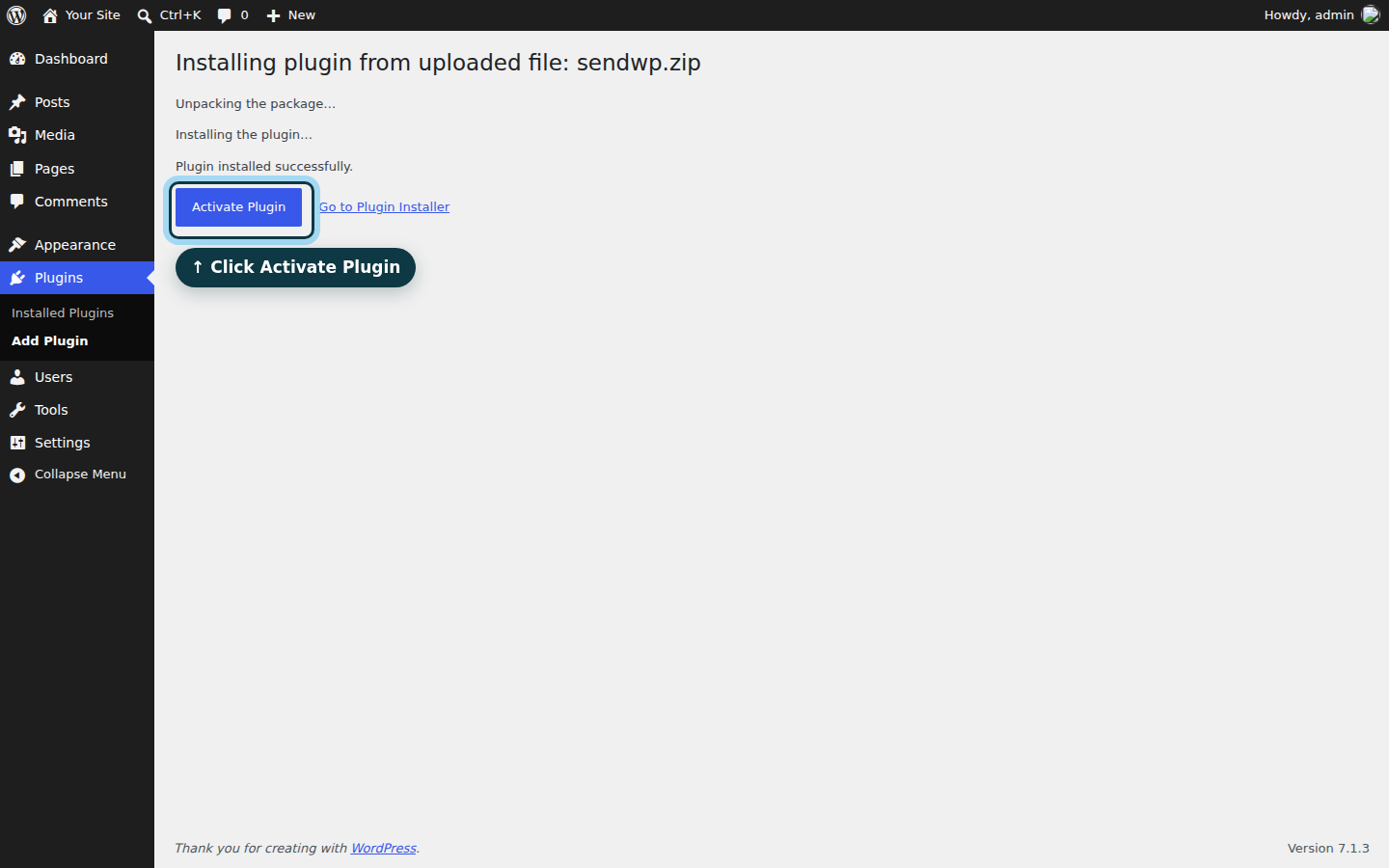
- Go to Plugins > Add Plugin, search SendWP, click Install Now, then Activate.
- In the notice at the top, click Connect or register.
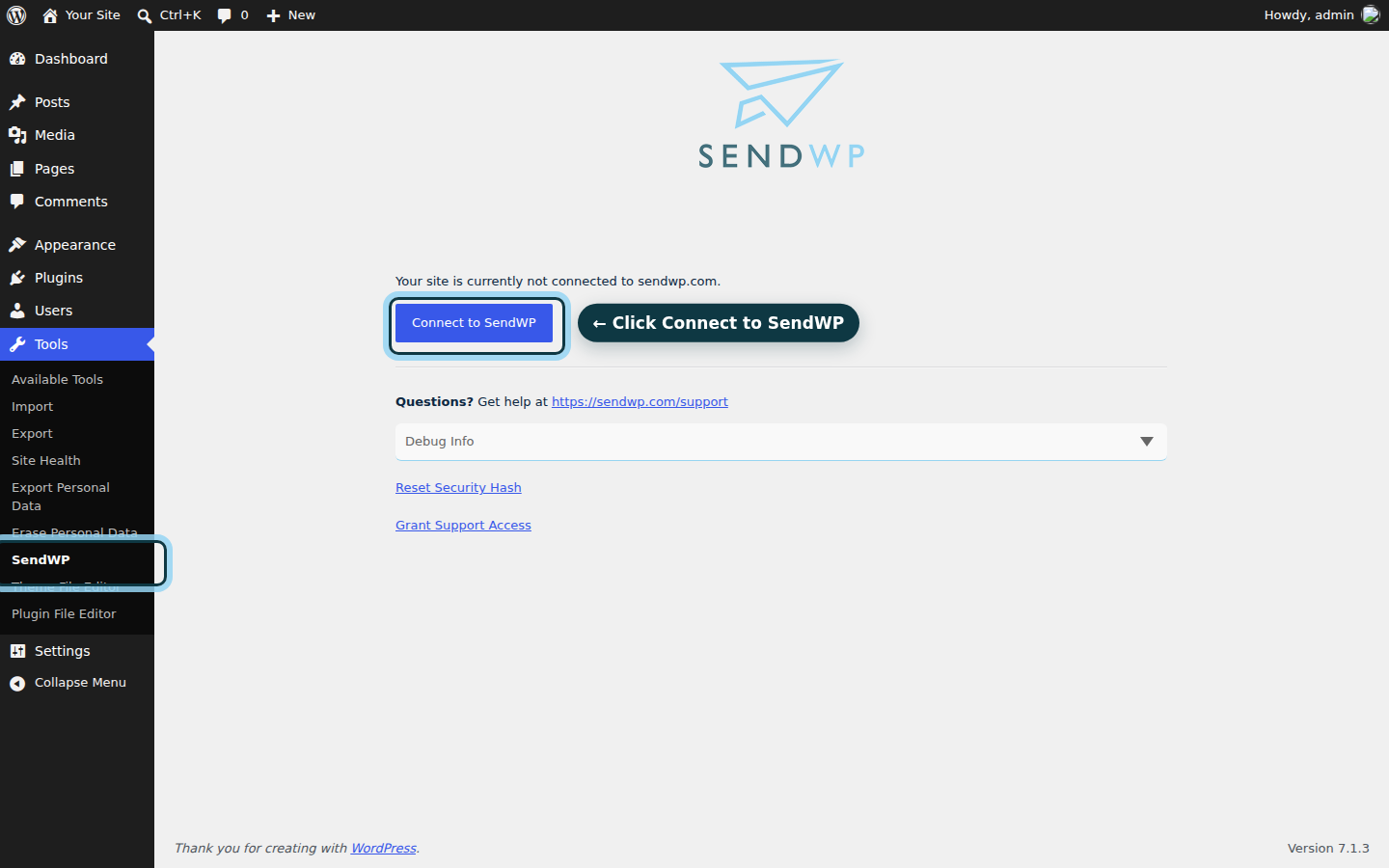
- On the Tools > SendWP screen, click Connect to SendWP, then register or log in and follow the prompts to connect.
- Ask for a reset again and look for the email. If SendWP can't deliver it, the WordPress screen won't tell you, so check your inbox and the Emails tab for your site in your SendWP account. It lists each email SendWP sends for your site and whether it was sent.
On our test site connected to SendWP, both resets arrived: the one from the WordPress screen and the one from WooCommerce's form. If the log says yours was sent and it still doesn't come, look in spam, then do that separate step: the Deliverability tab in your SendWP account lists the SPF and DKIM records to add.
Get back in today, then fix the problem the message points to
You started with an error, or a "Check your email" with nothing behind it. Now you can get back in without the email and tell what each message means.
Start with the spam folder, the account's address and WooCommerce's reset email, which cost nothing to check.
You're back in, and you didn't break anything. If you'd rather not wonder whether the next password reset will show up, we think SendWP is the best way to fix it for good: your site's email goes out through us, and the email log tells you what was sent. You can get started with SendWP for $1 your first month, and the install takes a few clicks. You've got this.