WordPress Critical Error and No Email in the Admin Inbox
Your WordPress critical error screen says to check your inbox, but nothing came. Here's how to get back in by renaming a folder, and why the email never arrived.

Your WordPress site says "There has been a critical error on this website. Please check your site admin email inbox for instructions." So you check, and there's nothing there.
You try the spam folder and reload the page: same screen, same empty inbox. Meanwhile you're locked out of your dashboard.
You didn't break anything by reloading, and you can get back in without that email. Here's how, and why the inbox is empty.
Get back into WordPress without the email (rename one folder)
WordPress's own documentation says errors like this commonly come from a faulty plugin or theme. If a plugin is what failed, rename its folder. WordPress switches the plugin off, and your login page loads again.
The email would have named the plugin. Without it, that documentation says to contact your web host's support, so ask them which plugin or theme failed.
- Open your site's files with your host's file manager or an FTP program. You don't need a WordPress login for this.
- Open
wp-content, thenplugins. - Rename the failing plugin's folder. Adding
-offto the end of its name is enough. - Load your login page. You should see the normal login form.
- Log in and open Plugins. A notice says the plugin "has been deactivated due to an error: Plugin file does not exist."
Once the plugin is fixed, rename the folder back, and activate it again if the Plugins screen lists it as inactive.
Rename a theme's folder and WordPress switches to a default theme
Renaming the active theme's folder under wp-content/themes brought the login page back in our test too, but the public site was blank while the folder was missing. The first time you open Appearance > Themes, WordPress says "The active theme is broken. Reverting to the default theme." and switches themes.
Renaming the folder back doesn't undo that. Activate your own theme again once it's fixed.
What "Please check your site admin email inbox for instructions" really means
It means a fatal error happened on your login page or in your dashboard. It does not mean an email was sent. On our test sites that sentence stayed on screen when the send failed, and when no email was created at all.
Why the recovery email never reached you
Here are the reasons we found, in the order you can rule them out. Only the last one is about delivery.
Your screen has no inbox sentence, so no email was due
If your screen says only "There has been a critical error on this website.", WordPress created no email. That's what we saw for a crash on the public site. The email only came for errors on the login page and in the dashboard.
We saw the same short screen and no email when the failing file wasn't in a plugin or theme folder, and on a multisite network. If either is you, ask your host's support which file failed.
A blank white page is different again. In our test, a wp-config.php line setting WP_DISABLE_FATAL_ERROR_HANDLER to true meant no error screen and no email. Get in with the folder rename, then remove that line.
The email went to a mailbox you don't read
The recovery email goes to one address, the Administration Email Address under Settings > General. It does not go to whoever hit the error. (If you build sites for clients: RECOVERY_MODE_EMAIL in wp-config.php overrides it when it holds a valid address.)
Search that mailbox, spam included, for a subject ending "Your Site is Experiencing a Technical Issue". Its sender name is "WordPress".
A new address doesn't count until you click the link in WordPress's confirmation email. Until then the recovery email still goes to the old one.
WordPress already tried once in the last 24 hours
WordPress creates one recovery email a day at most. It notes the time before it sends, so an attempt that failed still uses up the day.
Reloading won't produce a second email, though the screen keeps telling you to check your inbox. Don't wait it out. Rename the folder.
Got the email but opened it late? Its link lasts one day and works once: a link older than a day shows "Recovery key expired." and a used one shows "Recovery Mode not initialized." WordPress creates a new email and link when the error next happens on your login page or dashboard after the day is up.
Your site's email isn't being delivered
WordPress sends the recovery email like every other email from your site. Email sent straight from a web server is often blocked or filtered to spam, and it often lacks SPF and DKIM authentication, the DNS records that prove an email really came from your domain.
That's the problem we built SendWP for, so it's what we'd suggest. It's a paid service, and once you install the SendWP plugin and connect it, your WordPress email goes out through SendWP instead of your web host, with help on domain authentication. On our test site connected to SendWP, a crash in a plugin that loads after SendWP created a recovery email, and it arrived.
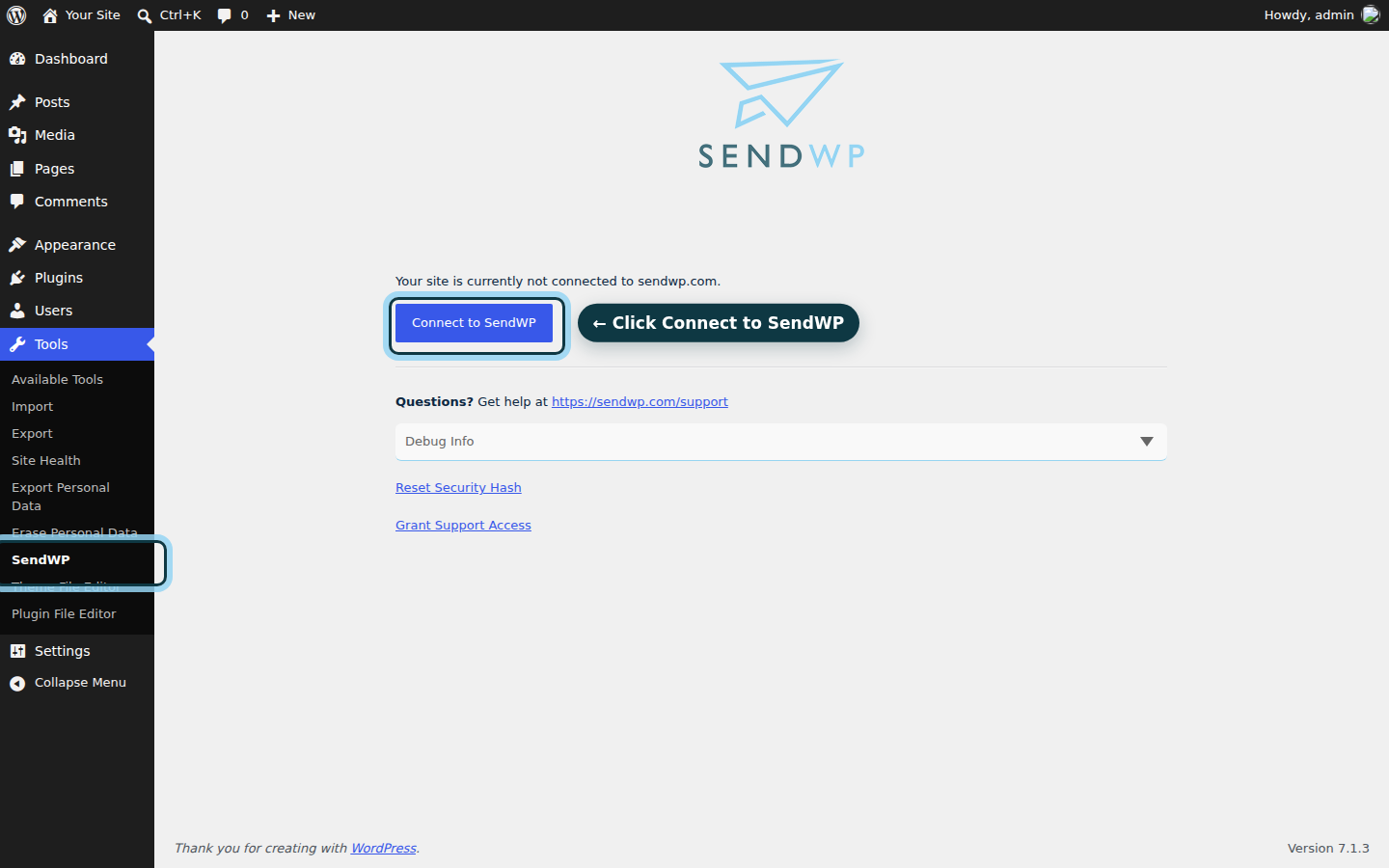
One limit: if a plugin that loads before SendWP crashes as WordPress starts, SendWP hasn't loaded yet and can't send the recovery email (plugins usually load in alphabetical order by folder name). When the failing plugin loads after SendWP, or fails later in the page load, SendWP sends it. WordPress's documentation says the same of any plugin that changes how email is sent, and the folder rename still gets you in.
Check that your site's email works while nothing is broken
Once you're back in, make WordPress send you an ordinary email.
- Go to Settings > General and read the Administration Email Address.
- If it's a mailbox you read, open your login page, click Lost your password? and request a reset for an administrator account that uses that address. Look there for a subject ending "Password Reset".
- If it isn't, enter a mailbox you read and click Save Changes. Look there for an email whose subject ends "New Admin Email Address", and click its link to confirm.
If the email arrives, your site's everyday email works. It can't prove the case where a plugin crashes before SendWP loads.
If it doesn't arrive, go back to the delivery section. If you changed the address, click Cancel in the notice that begins "There is a pending change of the admin email".
Get back into your site today, then fix its email
You started with a screen that said "please check your site admin email inbox for instructions" and an empty inbox. Now you know the screen says that whether or not an email exists, and how to get in without one.
With SendWP you get an email log of what was sent, so you can check instead of guessing, and your WordPress email goes out through SendWP instead of your web host. That's why it's our suggestion for the email side.
The folder rename comes first, and no email service can do that for you. SendWP is a paid service, and you can get started for $1 your first month.