WordPress mail logs: see what your site sent and what happened
Did that email even go out? A mail log shows what your WordPress site sent and what happened next, so you can tell a form problem from a delivery problem.

Your contact form says "Thanks, we got it!" and nothing shows up in your inbox. A customer writes to say their receipt never came. You hit "Lost your password?" yourself and wait. Did that email even go out?
Here's the short version: a mail log is a list of every email your site handed off for sending, with what happened to each one. Open it, find the email, and read its status. That tells you whether the problem is your form or the delivery, and it's usually a two-minute check. You didn't break anything.
Skip down to the "Form problem or delivery problem?" section if you want the quick test.
What a mail log is, in plain words
Think of it as a receipt book at the post office. Every time your site mails something, a line gets written: who it was for, what it was, and what became of it.
That's all there is to it. The log doesn't send anything or fix anything. It tells you what happened, so you're not guessing.
Why WordPress doesn't keep one by default
Out of the box, WordPress passes each email to the web server and moves on. It doesn't write down what the server did with it. So when something goes missing, there's nothing to look at.
Form plugins have the same gap. Contact Form 7, for example, doesn't store submitted messages anywhere, which is why people add a second plugin just to see what came in. We cover that in Contact Form 7 not sending email.
A log has to come from whatever actually sends the mail. That's the reason it's worth choosing a sending service or SMTP plugin that keeps one.
How to read a log entry
Every entry has the same basics: the recipient, the subject, the time, and a status. The labels differ a little from tool to tool, so check yours. In SendWP's log, these are the ones you'll see.
- Pending: SendWP has the email and is getting it ready to go. A pending email a few seconds old is normal. One that stays pending is worth a question to support.
- Sent: the email left for the recipient's mail server. It doesn't tell you the person read it, or even saw it.
- Bounced: the receiving side refused the email. The usual reasons are an address that doesn't exist or a mailbox that's full. The error text in the entry is your best clue, so read it before anything else.
- Failed: it couldn't be sent. Open the email and its reason tells you why.
- Blocked: the address or domain is on your own block list, so SendWP didn't send it.
- Spam complaint: an extra icon next to the status means the person marked the email as spam. This is worth taking seriously, because a pile of them is how a sender gets a bad name with Gmail and Yahoo.
When you see a bounce, fix the address or the cause named in the error, then send again. When you see a complaint, ask whether the person really expected that email.
What a log can't tell you
We'd rather be straight about this. A SendWP log shows delivery status, bounces and complaints. SendWP doesn't track opens or clicks, so you won't see who read an email or which link they pressed.
There's one more limit, and it's about WordPress itself. If a plugin that crashes WordPress while it's starting loads before SendWP (plugins load in alphabetical order of their folders), SendWP isn't running yet, and the "Your Site is Experiencing a Technical Issue" email goes out through your server's own mail instead. It won't appear in the log. We walk through that case in WordPress critical error and no email in the admin inbox.
Form problem or delivery problem?
This is the most useful thing a log does. Your form and your sending are two separate jobs, and the log shows you where the chain broke.
- Submit the form yourself, using an address you can check.
- Open the log and look for that email by recipient and time.
- Not in the log at all? The email never left your site. That's a form or plugin problem: a wrong notification address, a disabled notification, or the form skipping the email. Fix it in the form's settings.
- In the log as pending or sent, but not in your inbox? The email left your site. Check your spam folder, then look at the domain's authentication, which is the set of DNS records that prove the email really came from you.
- In the log as bounced? Read the error text. It usually names the cause.
- Complaint on the entry? Someone marked it as spam, so look at who it went to and why.
So the form is fine when the email's in the log. And when it isn't in the log, the form is where you look. The same check works for order receipts, password resets and membership emails, since they all travel the same road.
If you're not sure what the authentication records are, our guide to authenticating your domain covers them in plain words.
Keeping logs for 30 days, and watching complaints
SendWP keeps at least the last 30 days of your email log. That's plenty for the usual "a customer says they never got it last week" question. If you need a record from longer ago, copy what you need out before it ages off.
Your site's Deliverability page in the SendWP dashboard also has a Spam Complaints card: how many of the emails your site sent recently were marked as spam, rated Good, Needs Attention or Poor. It's worth a glance now and then, especially if you send for several sites. Each complaint is also flagged on its email in the log, so you can see which one was reported. If the card isn't Good, look at what you're sending and who you're sending it to.
Agencies: every client site has its own Spam Complaints card, so it's quick to see which site needs attention first. You can read more on what's included on the features page.
Free SMTP plugin or SendWP?
Free SMTP plugins also give you a pipe and a log. If you already have a sending provider you're happy with, a free plugin may be all you need, and there's no reason to switch. Our comparison with WP Mail SMTP lays out the differences without pushing you.
What SendWP adds is the rest of the job for people who don't want to become email admins: sending, help with authenticating your domain, and a place to ask when something looks off. You can reach us from the support page. We built it because the usual way people find out about WordPress email trouble is an angry customer, and we'd rather you check a log first.
Setting up takes an install and a connection. Here's the screen you'll land on in WordPress, under Tools:
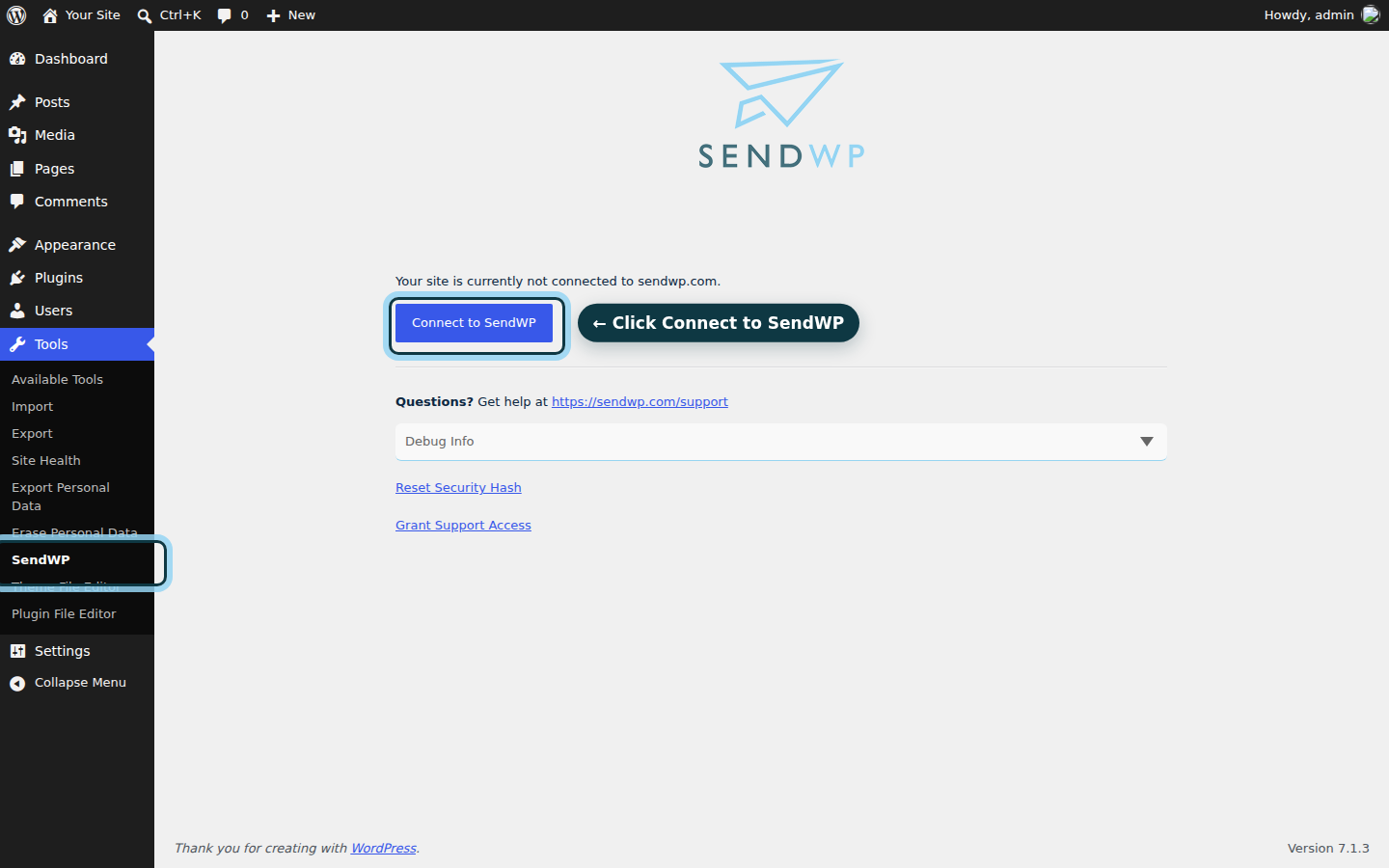
Once you're connected, the log starts filling up with your site's email. Send yourself a test and see it appear. You've got this.
If you'd like a log you can trust and a team behind it, get started for $1 your first month.