WooCommerce Emails Not Sending? Find Which Ones Are Missing
Customer asking where their receipt is? You didn't break anything. Here's how to find which WooCommerce emails are missing, why, and fix it today.

A customer writes to ask where their receipt is. Or you realize you haven't had a new-order email in days, even though you know orders are coming in. You open WooCommerce and the orders are right there. The emails just never showed up.
First, breathe. You didn't break anything, and this is fixable, often in a few minutes. Here's the short version: WooCommerce emails go missing for four reasons. The email is switched off, the order never reached the status that triggers it, your web host isn't sending the mail, or the mail goes out but nobody trusts it. We'll check them in that order, because the first two cost you nothing and take two minutes. Skip down to the section that sounds like you.
Work out which email is missing
"WooCommerce emails not sending" can mean very different things, so start by naming yours.
- You get no new-order email, but customers get their receipts. That points at the recipient address or that one email's settings.
- Customers get nothing, but you get your alerts. That points at the customer emails being off, or at the order status.
- Nobody gets anything, you, customers, or the password reset email either. That points at your server or your DNS, and you'll want the sections further down.
If password resets are also missing, our post on WordPress password reset emails not arriving covers that side of the same problem.
Check that the email is switched on
Go to WooCommerce > Settings > Emails. You'll see a list of every email your store can send, each with a toggle. Open the one that's missing and check three things:
- It's enabled.
- For your new-order email, the recipient is an address you actually read. It can hold more than one address, separated by commas.
- The "From" address is on your own domain, not a leftover or a typo.
That last one matters more than it looks. We'll come back to it in the DNS section.
Check the order's status
WooCommerce sends most customer emails when an order moves to a particular status, such as Processing or Completed. If a payment gateway leaves orders stuck on Pending payment, the customer's receipt never gets created, and no email setting or sending tool can fix that.
Open WooCommerce > Orders and read the Status column on the order that went quiet. If it's sitting on a status you didn't expect, the problem is upstream of email: look at your payment gateway first. If the status looks right and the email still didn't arrive, open the order and look for the option to resend the order email. If the resent email also vanishes, move on.
Find out whether your server sent it at all
WooCommerce doesn't deliver email itself. It hands each message to WordPress, and WordPress hands it to your web host's PHP mail. Many hosts block or throttle that, including outbound port 25. So WooCommerce can say everything's fine while the message goes nowhere. Same cheerful screen, empty inbox.
You can't see that from inside WooCommerce. That's the real argument for sending through a proper email connection instead: you get a log, so you can look up an order email and see whether it left your site. We'll get to that in a moment.
Add the DNS record that proves the email came from you
Say your host does send the mail. Gmail and Yahoo have required senders to authenticate their mail since February 2024. Think of it as a bouncer checking IDs at the door: an email claiming to be from your store that carries no ID gets turned away or sent to spam.
The ID comes as DNS records, which are settings you add where your domain is managed. Two matter here:
- SPF is a DNS record that lists who's allowed to send email for your domain.
- DKIM is a signature added to each email, like a signature on a check, so the receiving server can tell it wasn't forged or changed on the way. SendWP's DKIM record is always a CNAME, never a TXT record, so if a guide tells you to paste a long TXT value, that isn't ours.
One trap to know about: two SPF records on one domain break SPF completely. If you already have one (say, from your email provider) and you add another, you don't get both. You get neither. Merge them into a single record instead.
SendWP can also tell you the most basic DMARC record to publish. That's as far as our DMARC help goes: we don't advise on policy or read reports.
Our guide to authenticating your domain walks through it step by step.
Send a test order
Don't wait for a real customer to find out whether it works. Place a test order yourself, using your own email address as the customer, then watch for two things: your new-order alert and the customer's receipt.
- Pick a payment method that doesn't charge a card, if you have one enabled.
- Check the inbox and the spam folder.
- If you have an email log, find the message there too.
If both arrive, you're done. If one arrives and the other doesn't, go back to the toggle for the missing one. If neither does, the problem is the sending, and the next section is for you.
A quick word on spam
Sometimes the email leaves your site and lands in a customer's spam folder. Missing authentication is the usual cause, so the DNS section above is your first fix. Our post on why WordPress emails go to spam goes through the rest. We don't make promises about where any message ends up, and nobody honest can.
Do you need a sending provider at all?
Maybe not. If you already have a sending provider you're happy with, a free SMTP plugin is all you need. Free plugins give you a pipe and a log, and for many stores that's enough, as long as you set up the authentication yourself and keep an eye on it. We have honest comparisons if you want to see where we differ from WordPress's default mail and from the free plugins at our compare page.
We built SendWP for the store owner who doesn't want to become an email administrator. It's the option we believe is best for that person. Every email WordPress sends, including your WooCommerce order emails, goes out through SendWP instead of your host's PHP mail. You get help authenticating your domain, a 30-day email log so you can check what happened to an order email, and if you get stuck you can ask us through support. We don't offer open or click tracking, and we don't offer real-time monitoring. What you get is sending, authentication help and a log.
SendWP also works with the plugins you already use, WooCommerce among them.
Connect SendWP to your store
Here's what we'll do: install the plugin, connect your site, then add your DNS records and use a From address on your own domain. The full walkthrough is in getting started, but here's the outline.
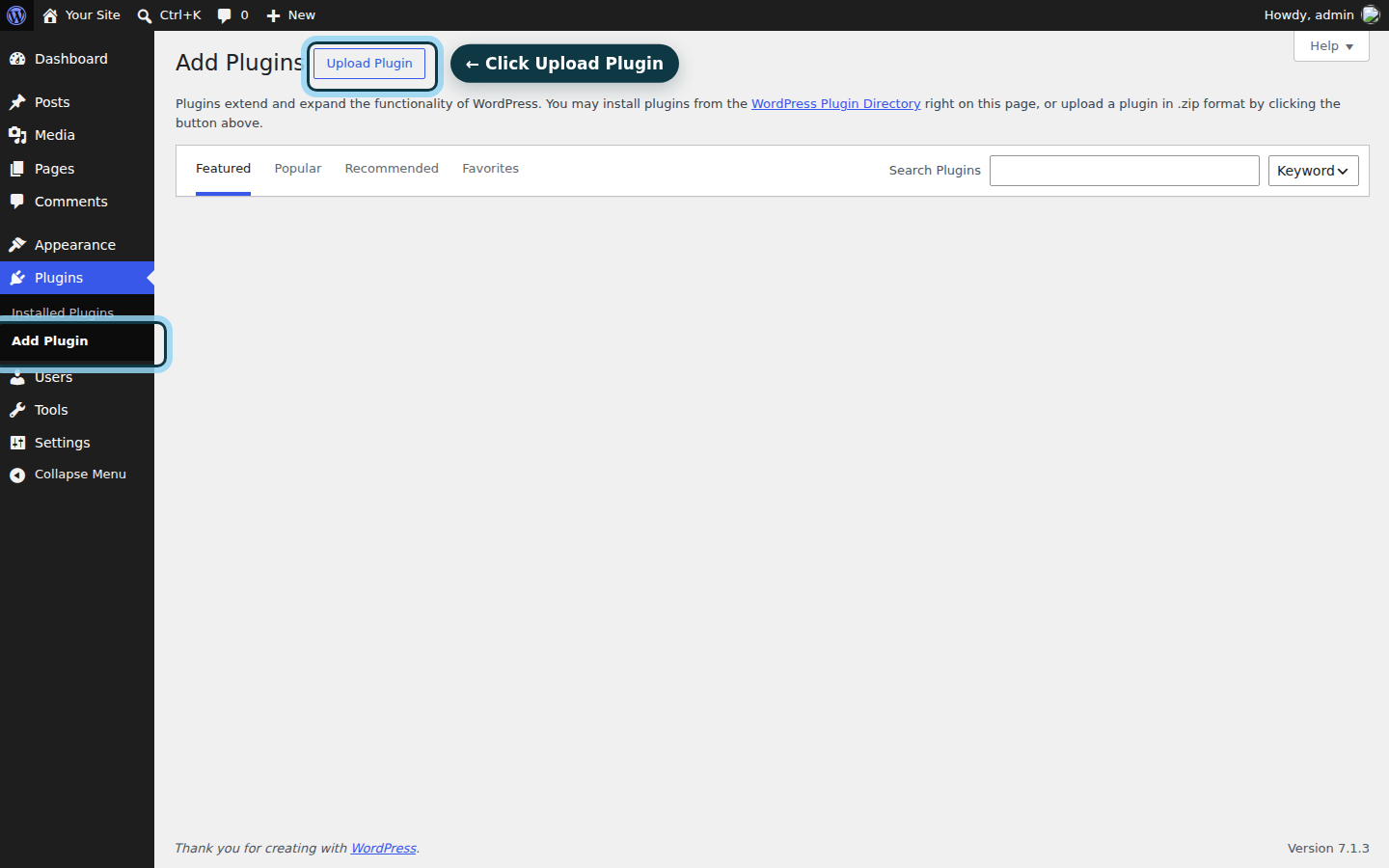
In WordPress, go to Plugins > Add Plugin, then upload the SendWP plugin zip.
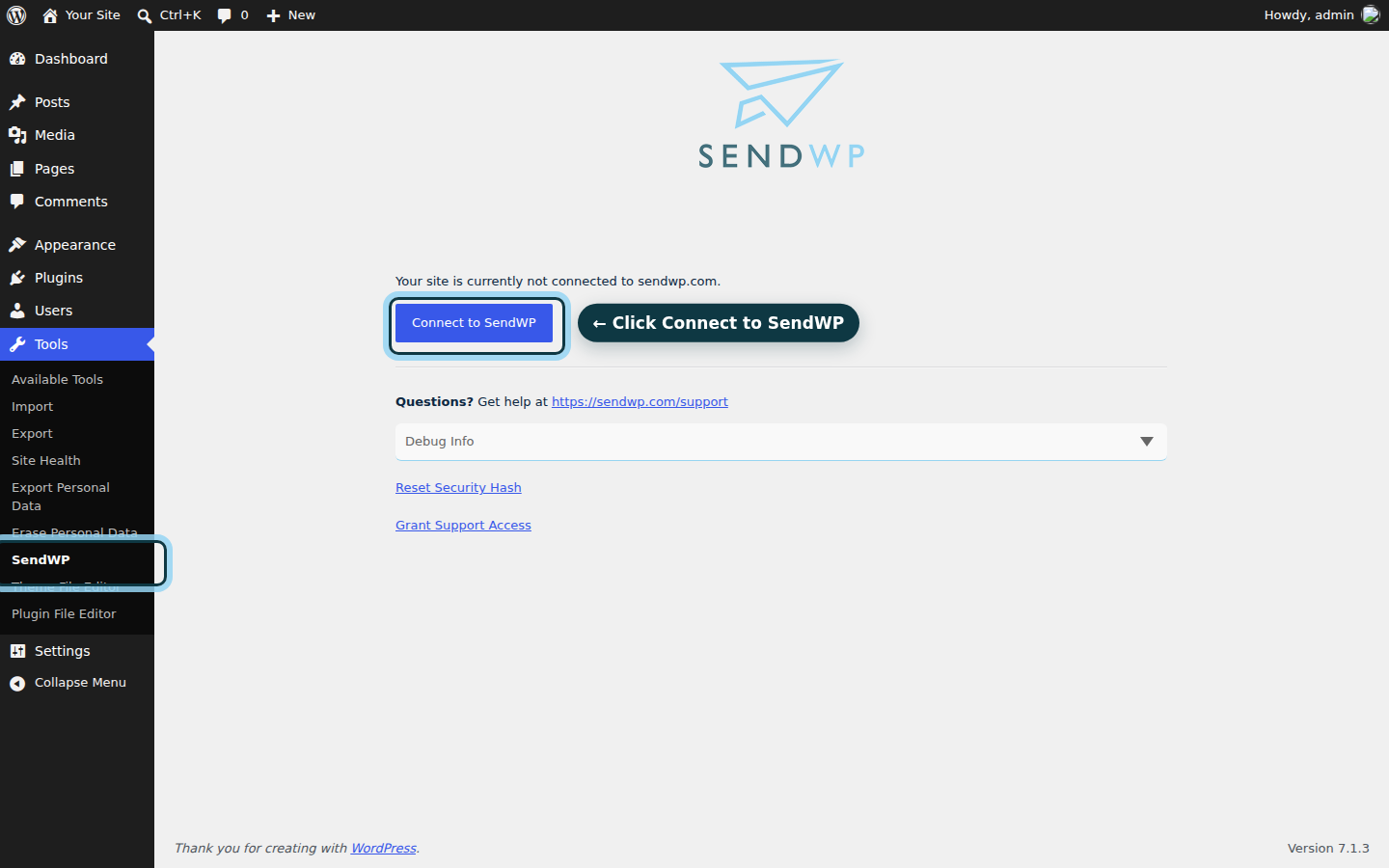
Activate it, then open the SendWP screen under Tools and connect your site.
Then add the DNS records SendWP gives you, set your WooCommerce From address to one on your own domain, and place another test order. That's all there is to it.
Your order emails now carry proper ID, and if one goes missing you can look it up in the log instead of guessing. You've got this. If you'd like us to take the email side off your plate, get started for $1 your first month.