Admin Email Change Stuck on Pending in WordPress? Fix It
Your WordPress admin email change is stuck on pending and the confirmation never arrives. Here's where it goes, how to resend it, and how to test.

WordPress admin email change stuck on pending? You typed the new address under Settings > General, clicked Save Changes, and WordPress said "Settings saved." Days later it still reads "There is a pending change of the admin email to" your new address, and the confirmation email never arrives.
Maybe you've saved it again, more than once. Or you've taken the site over from someone else, and you're worried the email went to them.
You're stuck, but you didn't break anything, and this is fixable. Here's where that email goes, how to get WordPress to make a new one, and what to do when your site isn't getting email out.
A pending change of the admin email waits on the new address, not the old one
WordPress sends the confirmation to the new address only. The old address gets nothing at this point and doesn't have to approve anything. It's only told once the change has gone through.
So look in that inbox and its spam folder for the subject "[Your site's name] New Admin Email Address". Found it? Skip down to "only the newest link works."
The Administration Email Address is the one under Settings > General, where WordPress sends notices about the site, like critical error alerts. Changing it doesn't change the email you log in with, which is under Users > Profile.
How do you resend the confirmation email? Click Cancel and type the address again
There's no resend button. Typing the same address again and clicking Save Changes shows "Settings saved." and sends no email.
Before you start: while a change is pending, the field shows your current address, not the new one. Click Save Changes without retyping and the notice vanishes, but nothing new is sent. If that's already happened, start at step 3.
Here's what works:
- Go to Settings > General and find Administration Email Address.
- In the notice under the field, click Cancel. The notice goes away, with no message.
- Type the new address in the field.
- Click Save Changes. You'll see "Settings saved." and the pending notice again.
That's it. WordPress makes a new email, with a new link, for the new address.
Give it a few minutes, then check inbox and spam again. Still nothing? Skip down to "test your site's email."
Only the newest link works, and you need to be logged in as an administrator
Each new request replaces the one before it, so only the link in the newest email works. Open it in the browser where you're logged in to the site as an administrator.
Any administrator can finish it, not only the one who asked.
If the link doesn't seem to do anything, what you see tells you why:
- You're back on Settings > General with no message, and the pending notice is still there: that link is from an older email. Use the newest email.
- The login screen: you're logged out. Log in there as an administrator. That completes the change.
- "You need a higher level of permission.": your account isn't an administrator. Open the link from an administrator account.
How to tell the change went through
When the link works, you land on Settings > General and WordPress says nothing. No "Settings saved." this time. The proof: the Administration Email Address field shows the new address, and the pending notice is gone.
WordPress also emails the old address, with the subject "[Your site's name] Admin Email Changed".
"Settings saved." appears even when no email was sent, so test your site's email
The screen can't tell you if the confirmation email went out. In our tests, WordPress showed the same "Settings saved." and the same pending notice when sending worked and in each of the three ways we made it fail.
So test with a different email, to an address you can read:
- Go to your site's address with
/wp-login.phpon the end and click Lost your password? - Type the username of an account whose email you can read, and click Get New Password.
If that email arrives, go back up, click Cancel, type the new address again, and check its spam folder. If the confirmation still doesn't come, skip down to "Still no email?" That section is for you too.
If the test email doesn't arrive, or WordPress shows an error, the setting was never the problem. Your site's email is.
Still no email? Change how your site sends email
Email sent straight from a web server is often blocked or filtered to spam, and it often lacks SPF and DKIM authentication, the DNS records that prove an email really came from your domain. That's the problem we built SendWP for, so it's what we'd suggest.
It's a paid service. Once your site is connected, every email WordPress sends goes out through SendWP instead of your web host, and that includes this confirmation email. On our test site connected to SendWP, it arrived.
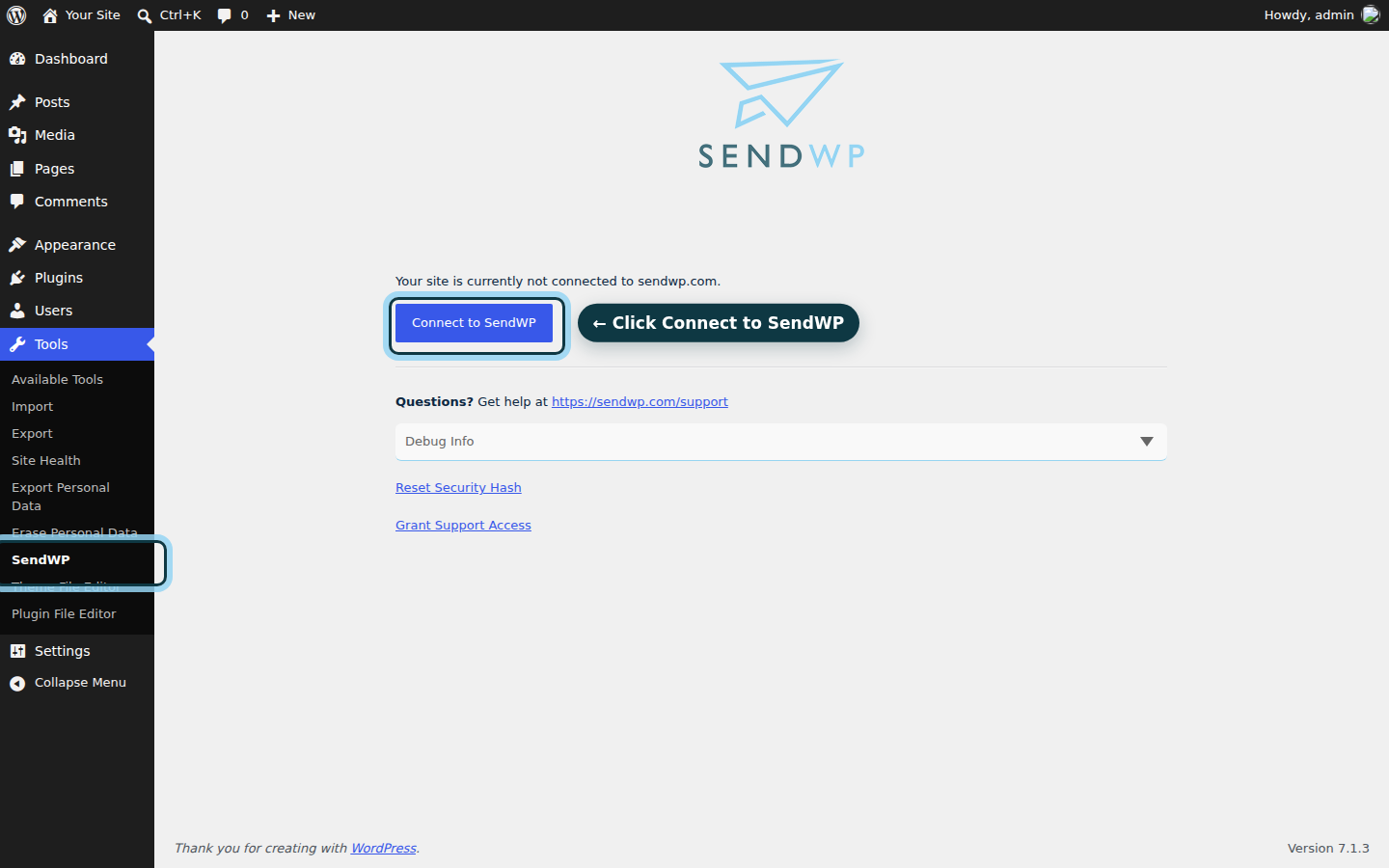
Here's how to install the SendWP plugin and connect it:
- Go to Plugins > Add Plugin, search SendWP, click Install Now, then Activate.
- In the notice at the top, click Connect or register.
- On the Tools > SendWP screen, click Connect to SendWP, then register or log in and follow the prompts to connect.
- Back on Settings > General, click Cancel, type the new address again and click Save Changes.
Then go by the inbox, not the screen. It looks the same either way.
Two notices look alike, and the one on your Profile is about your own account
The notice on Users > Profile says "your email" where the other says "the admin email." It's about your user account's address, and it has its own confirmation email, with the subject "[Your site's name] Email Change Request".
Confirm or cancel that one there. It doesn't change the Administration Email Address.
Why we don't start with the options.php shortcut
You may have been told to skip all this and change the address directly, on /wp-admin/options.php or in the database. In our tests, the direct edit on that page changed the address at once, with no confirmation email.
That's the catch. The confirmation is your proof that the new address can receive your site's email, and that address is where WordPress sends critical error notices.
If you use the shortcut anyway, click Cancel on the pending notice first. Otherwise the notice stays, and the link in that old email can still overwrite the address you set.
Get your new admin address confirmed today
You started with a notice that said "pending" and nothing else. Now you can check the right inbox, make a fresh request, and finish with the newest link.
If the spam folder and a fresh request don't bring the email, here's what SendWP changes: every email WordPress sends, this confirmation included, goes out through SendWP instead of your web host and shows in your SendWP email log, so the screen isn't your only clue. We believe it's the best option. It's a paid service, and you can get started for $1 your first month.