WP Mail SMTP Alternative: Send Email Without a Provider
Your SMTP plugin is installed but email still isn't reliable, or you can't see what it sent. Here's when to stay with WP Mail SMTP and when to switch.

Your contact form says "Thanks, we got it!" and the email never shows up. Or a customer writes to say their order receipt never came. You already installed an SMTP plugin, so you did the right thing, and it still isn't clear what's going on. Maybe you can't see a list of what was sent. Maybe the setup wizard asked you to pick a mailer and you don't know what that means.
You didn't break anything. This is fixable, and the first step is knowing what your plugin does and what it leaves to you.
Here's what we'll do: look at what WP Mail SMTP actually gives you, say plainly when you should stay with it, and then cover what changes if you'd rather not run the sending side yourself. Skip down to "When to stay with WP Mail SMTP" if you only want the verdict.
What WP Mail SMTP does, and what it hands back to you
An SMTP plugin is a pipe. It takes the email WordPress creates and passes it to a sending service instead of your web host's PHP mail. That's a good move, because mail sent straight from a host is often unauthenticated, blocked, or filtered to spam. We covered that in our comparison with WordPress's default mail.
But a pipe needs something at the other end. WP Mail SMTP doesn't send your email itself. You choose a sending provider, create an account, connect it, and add the DNS records that prove your email really came from your domain. Think of it as a mail slot: it gets the letter out of your house, but you still have to find a post office.
For plenty of people that's fine. For others, it's the part that went wrong.
Why people start looking for an alternative
From what we've seen, the complaints are specific, and most of them are about the free version:
- No email log. As of version 4.10.2, the free plugin keeps no log of sent email. It records failed sends in a debug table, so when a customer says "I never got it," you can't easily look up the message.
- Some connections are Pro only. Microsoft 365, Amazon SES and Zoho sit behind the paid version.
- You still need a provider. The plugin is free. The sending isn't.
- The setup wizard installs WPForms. Some people don't expect that, and don't want it.
None of these makes WP Mail SMTP a bad plugin. They're the edges of a free plugin whose job is to be a pipe.
When to stay with WP Mail SMTP
Be honest with yourself here, because switching costs you an afternoon.
Stay if you already have a sending provider you're happy with. Stay if you're comfortable with DNS records and API keys. And stay if you need failure alerts, or a connection to Microsoft 365, Amazon SES or another provider you already pay for. WP Mail SMTP Pro does those today. SendWP doesn't send failure alerts, and you can't bring your own provider to it.
If that's you, a good SMTP plugin is all you need. Our side-by-side with WP Mail SMTP lays out the rows, including the ones we lose.
What SendWP does differently
SendWP is the whole outcome in one service, so you don't become an email admin. You install a plugin, connect, and every email WordPress sends (form notifications, WooCommerce receipts, password resets, membership and course emails, admin alerts) goes out through our sending infrastructure. No separate provider account to open.
Here's what comes with it:
- Sending and a place to look. Email logs for 30 days, so when someone says "I never got it," you can check.
- Help with your domain's records. We help you add the DNS records that prove your email is really yours, including a DKIM record, the signature on the check. We can also tell you the most basic DMARC record to publish.
- Blocklist management and reports.
- Support. If something looks off, you can contact support.
With SendWP, sending and your email log come in one subscription. WP Mail SMTP is free, but you also need a sending provider, which may cost extra. Check the plans and pricing page for what applies to you today.
What SendWP doesn't do
You should know the limits before you switch.
We don't send failure alerts yet, so you won't get a ping the moment something breaks. We don't offer dedicated IP addresses. We don't track opens, clicks or conversions. If a recipient marks your email as spam, the email gets a complaint icon in your log and a Spam Complaint entry on its timeline, and the Spam Complaints card on your Deliverability page counts them for your site.
One more thing that surprises people: a one-click unsubscribe link appears at the bottom of every email we send, donation receipts included. A donor who clicks it stops receiving their receipts. The Terms, Privacy and Support links beside it can be changed in your dashboard. If someone unsubscribes by mistake, contact us from their address and name the domain they want email from again.
One last limit, for the developers. If a plugin that loads before SendWP crashes as WordPress starts, SendWP isn't loaded yet, and the "Your Site is Experiencing a Technical Issue" email goes out through the server's own mail.
How to switch without losing email
No worries, this is short. Setup is three steps (install the plugin, connect your site, add your DNS records), and the getting started guide has the full steps.
In WordPress, go to Plugins, then Add Plugin, and upload the SendWP plugin.
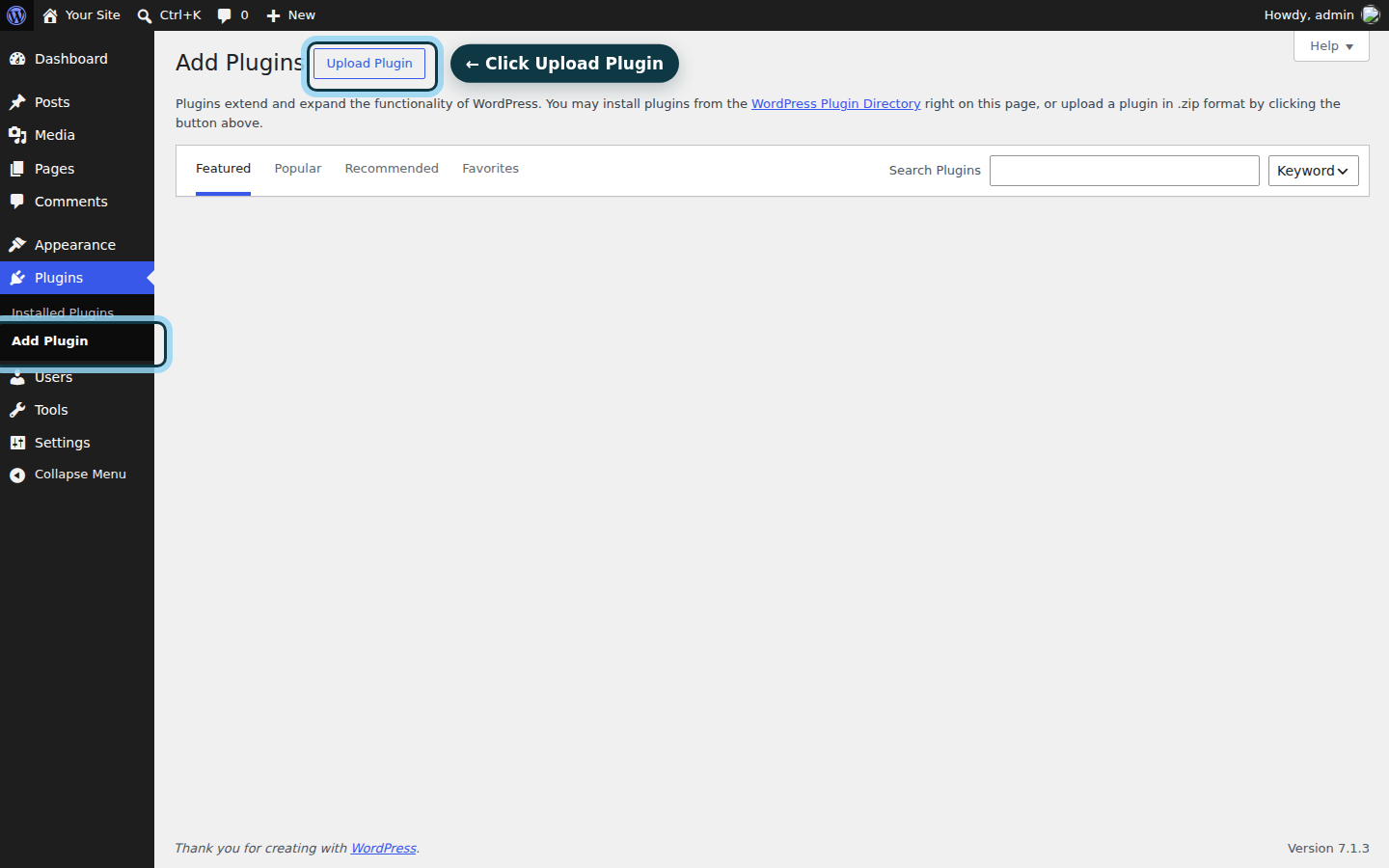
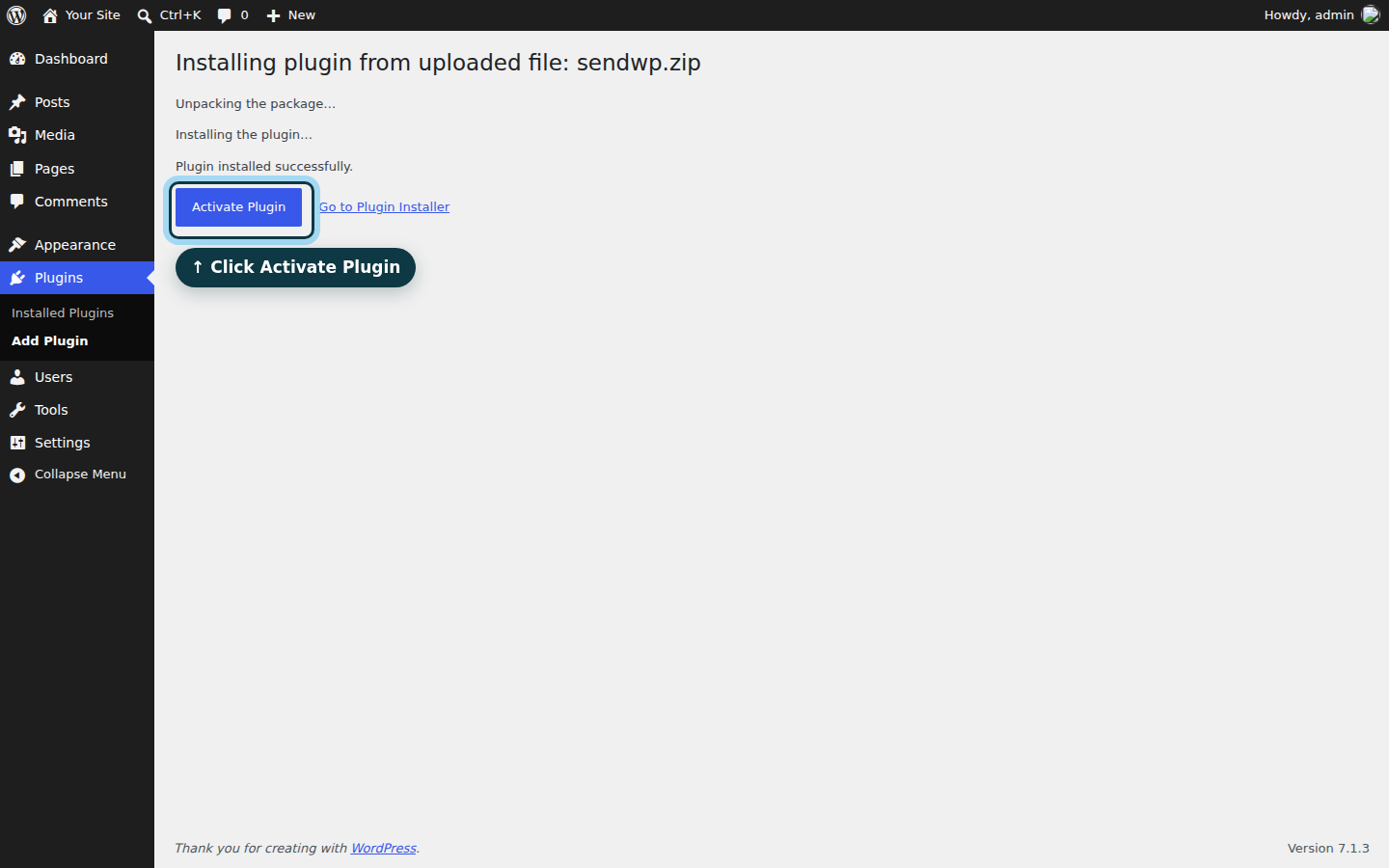
Install it and activate it.
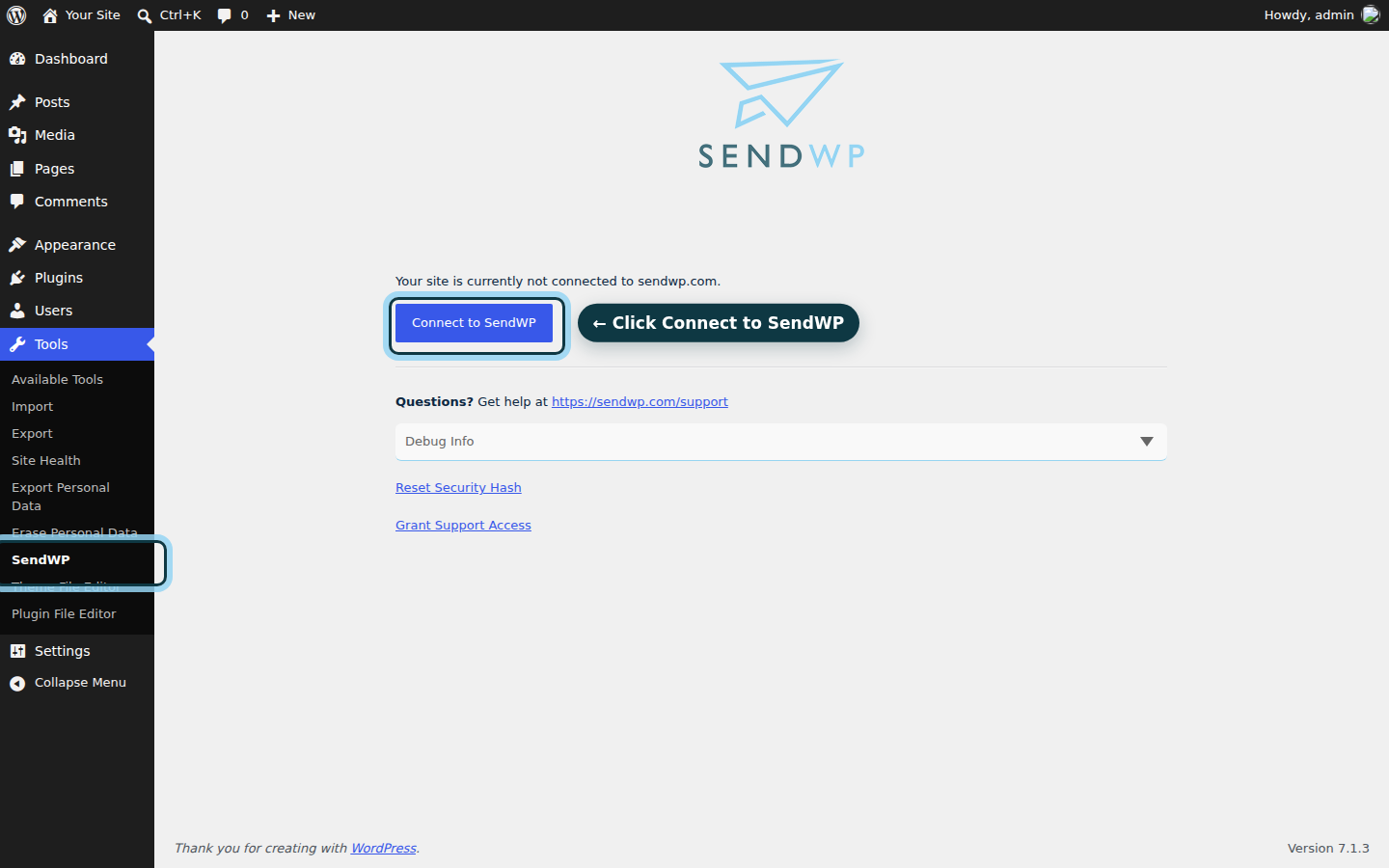
Then open the SendWP screen under Tools and click Connect.
Until you add your DNS records and use a From address on your own domain, we send from a fallback address. So do that next. Then send a test email, and once it arrives, deactivate WP Mail SMTP so only one plugin is handling your mail and the two don't compete for your email. Our documentation walks through the DNS part.
One thing to watch: if you ever add an SPF record by hand, keep to one. Two SPF records on one domain break SPF entirely.
So which one should you pick?
Here's the short version. If you have a provider you like and you want alerts, keep WP Mail SMTP. If you'd rather not pick, pay for and connect a provider at all, and you want a log, SendWP is the one we believe fits best. For most new site owners, that's the shorter road.
Either way, you now know what each one does and doesn't do, and that's most of the battle. You've got this.
If you'd like to try it, you can get started for $1 your first month, and the plans and pricing page shows everything else.