Wordfence Emails Not Arriving: the Unlock Email and Alerts
Locked out and the Wordfence unlock email never came? Here's how to get back in today, check your alert settings, and fix how your site sends email.

Wordfence unlock email not received? Security alerts stopped too? You're locked out of your own site, you typed your address into the box, the page said "Your request was received," and nothing came.
Maybe Wordfence's own test email even arrives fine. Every check you know says email is working, and you still can't get in.
Maddening? Yes, and it isn't your fault. If you're locked out right now, the first section gets you back in without that email, and if only the alerts stopped, skip down to the alerts section.
Wordfence unlock email not received? Get back in by renaming its folder
You haven't broken anything, and renaming Wordfence's folder gets you in without losing its settings. Wordfence is off until you finish, so do all five steps in one go.
- Open your site's files with your host's file manager or FTP and go to
wp-content/plugins/. - Rename the folder
wordfencetowordfence-off. - Go to your login page, which now shows the normal form. Sign in, and stay signed in.
- In the dashboard, open Plugins once. You'll see "The plugin wordfence/wordfence.php has been deactivated due to an error: Plugin file does not exist."
- Rename the folder back to
wordfence, then click Activate on the Wordfence Security row. You'll see "Plugin activated."
That's it, you're in. Because you opened Plugins in step 4, Wordfence stays off after you rename the folder back until you click Activate, so don't skip that click.
Once it's on, the lockout is back too: 4 hours by default, saved in your site's database. Your signed-in session keeps working, so don't sign out until the lockout runs out.
"Your request was received" shows for any address, so type your admin email exactly
That page proves nothing. Wordfence emails only an address that belongs to an administrator account, typed exactly as it's stored, or one on its alert list. Every other address gets the same page and no email.
Capitals count: in our test, an administrator's own address typed in capitals got the same page, and no email was sent. So ask again, carefully:
- Type the email on your administrator profile, in the same capitals.
- Click in the box (the button won't work until you do), then click Send Unlock Email.
- If you see "Please wait 3 minutes and try again", wait three minutes, then ask once.
- Open the newest email on the device that's locked out and use the first link. It unlocks whoever clicks it, and the links work for 30 minutes.
Leave the third link alone. It turns off Wordfence's firewall and login security for everyone.
Right address and still nothing? Then the email itself is going missing. Skip past the alerts section to the test email, which shows why.
Wordfence alerts not arriving? Check its settings before you blame email
Alerts can stop inside Wordfence before any email exists. Go to Wordfence > Dashboard and click Global Options. We checked these settings in October 2026, and they move between releases.
- Where to email alerts, in the General Wordfence Options group. It can be empty (it is on a fresh install), and while it's empty Wordfence sends no alerts at all. Put your address in.
- Maximum email alerts to send per hour, in the Email Alert Preferences group. The default is 5. The alert that reaches it has "Email Limit Reached" in its subject, then nothing more comes that hour. Repeats of an identical alert within the hour aren't sent, but still count toward the limit.
The Email Alert Preferences group also holds the on and off choice for each kind of alert, so check the one you're missing is on. If all of that looks right, the next stop is Wordfence's own test email.
Wordfence's test email can arrive while the unlock email never does
The test is worth running, but read the result with care:
- Go to Wordfence > Tools and open the Diagnostics tab.
- Type an address into Send a test email from this WordPress server to an email address: and click Send Test Email.
- Read the result, which is True or False.
False means WordPress hit an error and your site can't send email. True is weaker than it sounds. Wordfence's own note says "it's possible to get a 'True' response with an error elsewhere in your mail system that may cause emails to not be delivered."
Why a passing test says little about the unlock email
Wordfence sends the unlock email earlier in the page load than its other emails (on the plugins_loaded hook, if you build sites), and the test email goes out later. So an email plugin that sets itself up late can carry the test and miss the unlock email. In our test, a mail hook added late caught the test email and missed the unlock email.
That early send is a security decision, and a fair one. Wordfence's support explained it on September 28, 2026:
We can't change this as Wordfence needs to block visitors that could cause a security issue without allowing more code from WordPress and other plugins to run.
So a passing test with a missing unlock email points at how your site sends email.
Settings fine and still no email? Change how your site sends email
Wordfence sends every email through WordPress, from your own site, with no sender of its own. First search your spam folder for mail from wordpress@ followed by your site's domain. If nothing's there, look at how your site sends email.
Email sent straight from a web server is often blocked or filtered to spam, and it often lacks SPF and DKIM authentication, the DNS records that prove an email really came from your domain. That's the problem we built SendWP for, so it's what we'd suggest: a paid service that sends your site's email instead of your web host.
Wordfence sends the unlock email early, but on our test site connected to SendWP it still arrived, and its link worked. Here's how to install the SendWP plugin and connect it:
- Go to Plugins > Add Plugin, search SendWP, click Install Now, then Activate.
- In the notice at the top, click Connect or register.
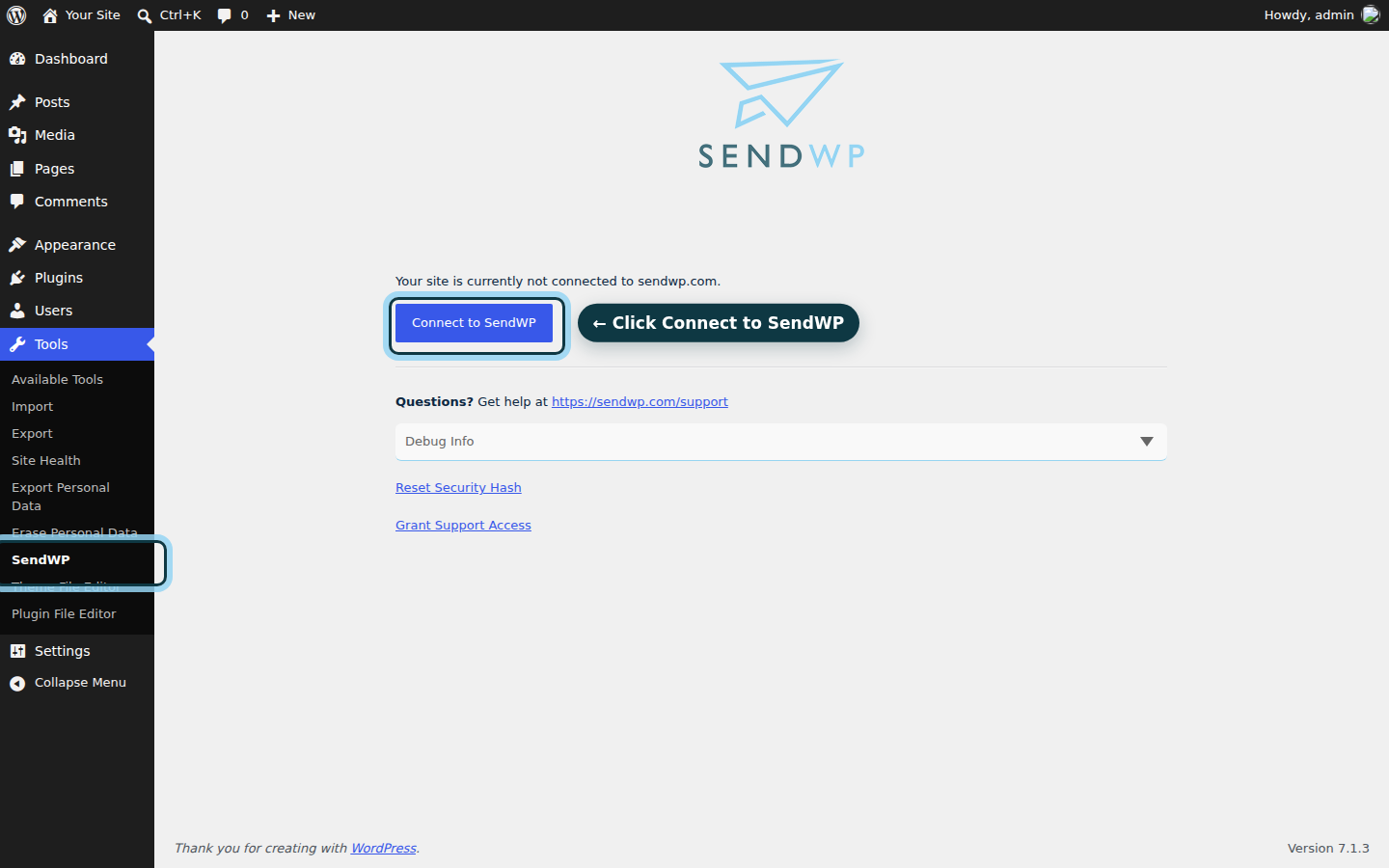
- On the Tools > SendWP screen, click Connect to SendWP, then register or log in and follow the prompts.
- Check that the notice from step 2 is gone. Activated but not connected, SendWP does nothing for Wordfence's email.
Then send Wordfence's test email again and check your inbox. This time the test means more: in our test, with SendWP connected, the test email and the unlock email both went to SendWP. Go by the inbox, not the word True.
Get back in today, then fix what stopped your Wordfence email
You started locked out, with a page that said your request was received and an inbox that said otherwise. Now you can get back in, and you know where to look when the email goes missing. Start with the free checks: the address, the alert settings and the spam folder.
Once SendWP is connected, the email WordPress sends, Wordfence's unlock email and alerts included, goes out through SendWP instead of your web host, and you get help setting up SPF and DKIM for your domain. If it comes down to how your site sends email, we believe SendWP is the best option. It's a paid service, and you can get started for $1 your first month.