WP Engine SPF and DKIM Records for WordPress Email
The WP Engine SPF record is one line, and WP Engine has no DKIM record to give you. Here's the exact value, how to add it safely, and where DKIM comes from.

You searched "wpengine spf record" because your site is on WP Engine and something told you to add SPF and DKIM for the email it sends. All you want is the exact values for your host, without guessing.
Maybe you've also run into mail1.wpengine.com and wondered if it's part of the answer. And the DKIM record? You've looked, and it isn't anywhere.
You're not missing anything. The WP Engine SPF record is one line, the DKIM answer is short, and WP Engine's own pages back up both.
The WP Engine SPF record is one line
WP Engine sends your WordPress email through a relay service called MailChannels, and it asks you to list that relay in your domain's SPF record, the DNS record that lists who may send email for your domain. This is the record WP Engine gives:
v=spf1 include:relay.mailchannels.net ~all
It comes from WP Engine's DMARC Policies for Email Deliverability page, which says "we highly recommend allowlisting email sent through MailChannels with an SPF record configured at your DNS host."
| Type | Name | Value |
|---|---|---|
| TXT | The domain root (your domain itself, like example.com). The label for this field differs by DNS host. |
v=spf1 include:relay.mailchannels.net ~all |
If your domain already has an SPF record, you'll edit that one instead. Don't publish this line beside it.
About mail1.wpengine.com: it's a WP Engine hostname, and when we looked it up, it published this same SPF record. wpengine.com itself publishes a different, much longer one, and that isn't the one to copy.
Check what your domain already publishes first
Replace example.com with your own domain in each command.
- Find where your DNS is managed. Run
dig +short NS example.com. You'll see two or more nameserver hostnames, and the company they belong to is your DNS host. - Look up your current records. Run
dig +short TXT example.com. You'll see one quoted line for each TXT record. No terminal handy? Open Google Admin Toolbox Dig, enter your domain in the Name field, and choose TXT. - Count the lines that begin with
v=spf1. A long record can show up as several quoted pieces on one line. That's still one record.
You add the record at that DNS host, not at WP Engine. The same WP Engine page says "WP Engine does not host DNS and cannot configure SPF records on your behalf."
Add the include without creating a second SPF record
A domain gets one SPF record. The SPF standard says that when a lookup finds more than one, the check returns an error, so a second record breaks the first one too.
No SPF record yet: publish the line as it is
Create one TXT record at the domain root with the line above as its value, and save it.
One SPF record already: add the include to it
WP Engine's page says to add the MailChannels relay to the existing record "rather than adding a separate record." Put include:relay.mailchannels.net before the all term, because the standard says anything listed after all is ignored.
Here's the shape, with a made-up record (use your own):
Before: v=spf1 include:_spf.example.net ~all
After:  v=spf1 include:_spf.example.net include:relay.mailchannels.net ~all
More than one SPF record: merge them first
Combine their entries into a single record that starts with one v=spf1 and ends with one all term, add the include before that all, and delete the extras.
Keep the merged record lean. The SPF standard allows ten terms that trigger a DNS lookup (every include is one, and so is each one inside it), and a record that goes over returns an error too.
Confirm your domain shows one SPF record with the include
Save the change, then run dig +short TXT example.com again. You should see exactly one line starting with v=spf1, and it should contain include:relay.mailchannels.net.
Not seeing what you expected? No worries. Check these:
- Give it time. MailChannels' SPF documentation says DNS changes can take up to 48 hours, though most show up within minutes to a few hours.
- Make sure you saved the change at the DNS host your first command named, not at WP Engine.
- Make sure the include sits before
all, not after it.
WP Engine has no DKIM record to give you
There is no WP Engine DKIM record to find. DKIM is a DNS record that proves an email really came from your domain, and WP Engine's Sending Email on WP Engine page says: "WP Engine does not provide MX or DKIM records for email hosting. Please reach out to your email host for these DNS record values."
If your domain has a DMARC policy, DMARC wants SPF or DKIM to check out for the domain in your From address. Google's sender guidelines say "The authenticating domain must be the same domain that appears in the message From: header."
Whether SPF alone does that job for a WP Engine site, we can't tell you: this page rests on WP Engine's own documentation and live DNS lookups, and we did not test a send from a WP Engine site.
See what a real message from your site shows
Send a WordPress email from your site to a Gmail address. Open it and, next to Reply, click More, then Show original. Google's DKIM instructions say to look in the header for Authentication-Results, where the DKIM result "should say something like DKIM=pass or DKIM=OK."
If yours doesn't show a DKIM pass for the domain in your From address, a DKIM record for your own domain is the part you can add.
Where a DKIM record for your domain can come from
WP Engine would rather you sent WordPress email somewhere else. Its DMARC page calls a third party email host "always recommended," and WP Engine caps how many emails you can send each hour without sharing the number.
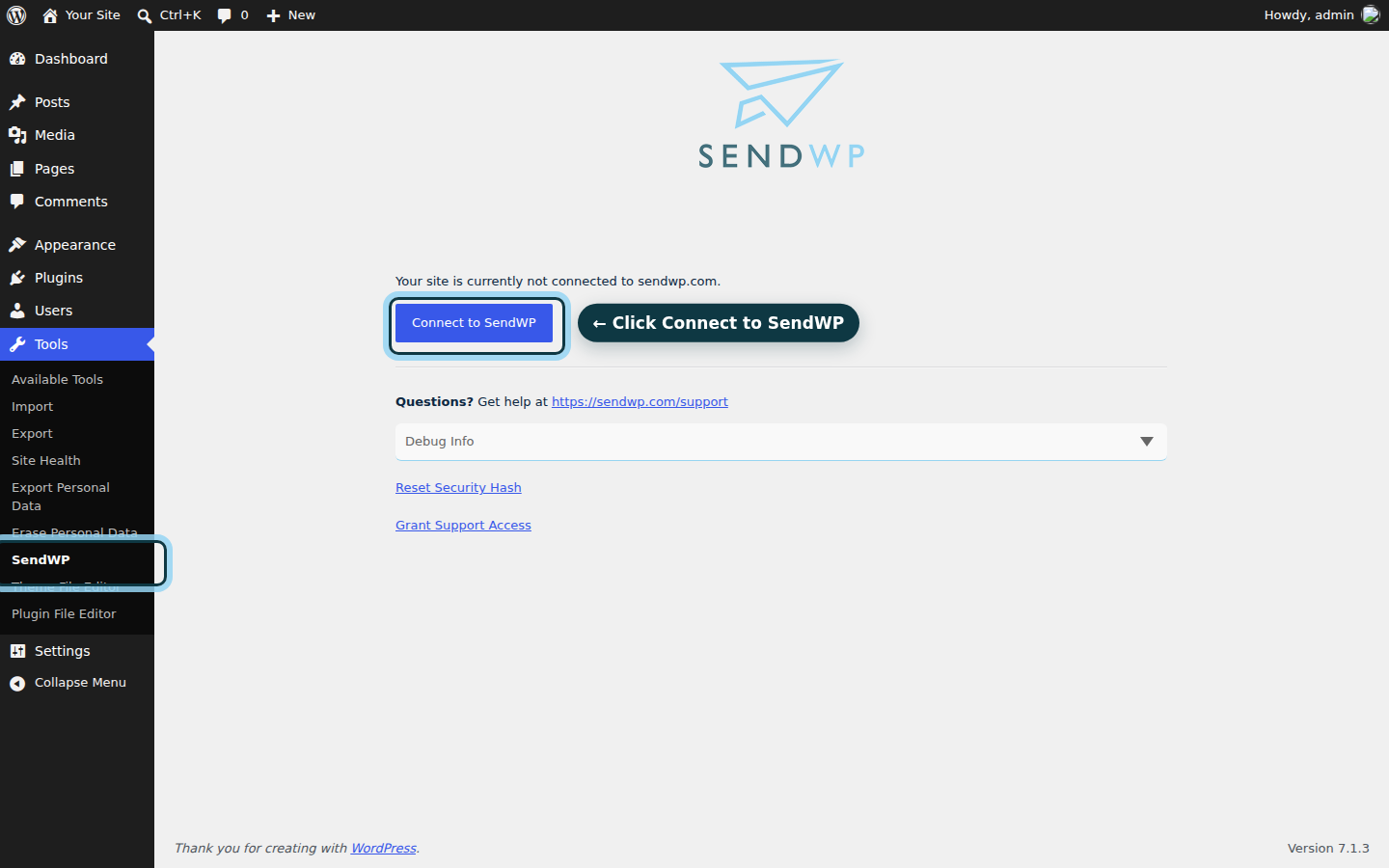
This is the problem we built SendWP for, so it's what we'd suggest. It's a paid service: you sign up, install the SendWP plugin and connect it, and every email WordPress sends goes out through SendWP instead of your web host. Then:
- In your SendWP account, open your domain and its Deliverability tab. It shows a DKIM Record and an SPF Record, each with a Record Name, a Record Value and a Copy button.
- Copy the DKIM record's name and value and add it at your DNS host as a CNAME record, never a TXT record.
- SendWP's SPF value is a whole record. You have one from the steps above, so copy only its
include:part into your record, beforeall. - Then press Recheck DNS on the same tab.
Publish the one SPF line, then get a DKIM record for your domain
You can stop hunting. One line goes into your one SPF record, and the DKIM record was never hiding from you.
Add the include first. It's free, and it lives at your DNS host, where neither WP Engine nor we can add it for you.
With SendWP, the DKIM record for your own domain is waiting in your account, next to its SPF include, each ready to copy. We believe it's the best way to get DKIM in place for the email WordPress sends. It's a paid service, and you can get started for $1 your first month.