You’ve read that Gmail and Yahoo want your spam complaint rate below 0.3%. Then another page says 0.1%. And nobody tells you where to find your own number, or whether any of it applies to a site that only sends order receipts and password resets.
It’s a hard thing to act on. A spam complaint happens in somebody else’s inbox, with a click on “Report spam”, and unless you’ve set something up, you never hear about it.
Both numbers are real, and it’s simpler than it looks. Google says to keep your spam rate below 0.10% and never reach 0.30%; Yahoo says to keep it below 0.3%. Here’s each rule in the provider’s own words, where to see your own rate, and 10 ways to reduce spam complaints, starting with the email WordPress sends.
Table of contents
- What spam complaint rate do Gmail and Yahoo require?
- What is a spam complaint?
- Where can you see your own spam complaint rate?
- What happens when your spam rate is too high?
- How do these rules affect transactional email?
- 10 ways to keep your spam rate below 0.3%
What spam complaint rate do Gmail and Yahoo require?
Google’s target for Gmail is a spam rate below 0.10%, and its line never to reach is 0.30%. Yahoo’s line is 0.3%, and Yahoo gives no lower figure. Gmail and Yahoo are mailbox providers, the companies that run your recipients’ inboxes, and these are their own sentences as they read on October 6, 2026.
| Mailbox provider | The rule, in their words | Where it’s written |
|---|---|---|
| Google (Gmail) | “Keep spam rates reported in Postmaster Tools below 0.10% and avoid ever reaching a spam rate of 0.30% or higher.” | Email sender guidelines |
| Google (Gmail) | “To comply with the sender guidelines, keep your user-reported spam rate below 0.1% and prevent it from reaching 0.3% or higher.” | Email sender guidelines FAQ |
| Yahoo | “Keep your spam rate below 0.3%” | Sender Best Practices |
So 0.1% is where Gmail wants you, and 0.3% is the threshold you never touch. Google’s list of requirements for all senders says it the short way, “Keep spam rates reported in Postmaster Tools below 0.3%”, which is the number in this article’s title.
None of this is news anymore. Google announced the requirements in October 2023, with a statement of support from Yahoo, and they have applied since February 2024.
Who counts as a bulk sender?
You’ll see “bulk sender” all over these pages. Google’s FAQ defines it: “A bulk sender is any email sender that sends close to 5,000 messages or more to personal Gmail accounts within a 24-hour period.” It also says: “Senders who meet the above criteria at least once are permanently considered bulk senders.”
The count goes by your own domain, not by the service that sends for you: “Messages sent from the same primary domain count toward the 5,000 limit.” A personal Gmail account is one ending in @gmail.com or @googlemail.com. Yahoo names no number at all: “We will not specify a volume threshold.”
You don’t have to be a bulk sender for your spam complaint rate to matter. Google and Yahoo both list the spam rate under their requirements for all senders.
What is a spam complaint?
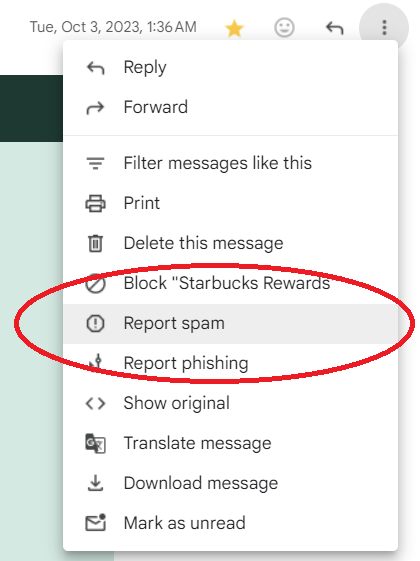
A spam complaint is one recipient marking one of your emails as spam. Your spam complaint rate is the share of your email that gets reported that way. You’ll also see it called the spam rate, the complaint rate or, in Google’s pages, the user-reported spam rate.
The providers measure it against email that reached the inbox, not everything you sent. Google’s Postmaster Tools help says: “The spam rate is the percent of your messages that are delivered to engaged recipient’s Inbox and then marked as spam by the recipient.” Yahoo says: “Spam rate is calculated in our system based on mail delivered to the inbox”.
Google’s FAQ adds: “Spam rate is calculated daily.” So picture one day when 1,000 of your emails land in Gmail inboxes:
- One spam complaint puts you at 0.1%, already at Google’s target instead of under it.
- Three spam complaints put you at 0.3%, the rate Google says never to reach.
- Five put you at 0.5%.
On a small site, a few reports go a long way.
Where can you see your own spam complaint rate?
Google shows it in Postmaster Tools, on a dashboard called Spam Rate. Yahoo sends you reports of spam complaints through its Complaint Feedback Loop. You set up both yourself, for your own domain, and both only cover email signed with DKIM (a DNS record that proves the email really came from your domain).
Gmail: the Spam Rate dashboard in Postmaster Tools
You need a Google Account and access to your domain’s DNS. Google’s Postmaster Tools setup help gives the steps:
- Sign in to Postmaster Tools, open Manage Domains and click Add new domain.
- Enter the domain you use to authenticate your outgoing email, then click Create.
- Beside the domain, click More options, then Verify domain.
- Copy the TXT or CNAME record it gives you into your domain’s DNS, then click Verify.
Until that last step is done, Google says, “Postmaster Tools won’t display information about your email”. Then use the menus at the top to pick your domain and a dashboard type. Google’s dashboards help describes the one you want: the Spam Rate dashboard “displays the percent of your messages that recipients manually mark as spam in Gmail.”
Google is moving Postmaster Tools to a new version, so your screen may be laid out differently from an older guide. A few things to expect from the number, all from Google’s help:
- It covers DKIM-authenticated email sent to personal Gmail accounts.
- Data is usually updated within 24 hours, but it can take longer.
- On days when you send very little, the dashboard might not include all your data.
- If Gmail is already filtering a lot of your email to spam, the rate can look low, because fewer people see your email in their inbox to report it.
An empty dashboard can mean low volume, email that isn’t signed with DKIM, or the wrong domain added, so check that the domain you added is the one your email is signed with. No worries if it stays empty. The 10 ways below reduce spam complaints whether or not you can see the number.
Yahoo: the Complaint Feedback Loop
Yahoo’s sender FAQs answer the question head on: “Where can I see the spam complaint rate for my domain? Sign up for the Complaint Feedback Loop and monitor complaints received against mail sent to Yahoo domains.”
To sign up, create a sender profile in Yahoo’s Sender Hub, add and verify your domain, then enroll it in the Complaint Feedback Loop. Yahoo’s page is clear about the catch: it “only supports DKIM-signed email”.
Once you’re enrolled, Yahoo sends a report of each spam complaint to an email address you control. On the Yahoo pages we read, that’s reports of complaints, with no rate figure shown.
What happens when your spam rate is too high?
Your email gets harder to deliver, by degrees. Neither Google nor Yahoo says a sender over the 0.3% threshold can no longer send. Here’s what each one does say.
Gmail filters more of your email to spam
Google’s FAQ says: “The user-reported spam rate’s impact on delivery is graduated, and rates of 0.3% or higher have an even greater negative impact on email inbox delivery.” Its guidelines put the cause and effect plainly: “Maintaining a high spam rate leads to increased spam classification.” They also say: “Over time, user spam reports can lower your domain’s reputation”.
The slide starts before 0.3%. The same FAQ says: “Even today, user-reported spam rates greater than 0.1% have a negative impact on email inbox delivery for bulk senders.”
Above 0.3%, a bulk sender loses Google’s help
Google’s FAQ says bulk senders with a user-reported spam rate greater than 0.3% are “ineligible for mitigation”. Its enforcement table lists the consequence as “Delivery support or mitigations unavailable”.
There’s a way back, and it has a number on it: “Bulk senders will be eligible for mitigation when their spam rates remain below 0.3% for 7 consecutive days.”
Yahoo may defer your email
Yahoo’s FAQ says: “Our system continuously evaluates mail, and we may defer mail from domains with a high complaint rate.”
What about block lists?
Block lists are a separate problem: none of the Google and Yahoo pages we read say a high spam rate puts you on one. If your IP address is already on one, here’s how to remove your IP address from the Spamhaus block list.
How do these rules affect transactional email?
The spam rate and authentication rules apply to transactional email. One-click unsubscribe doesn’t. So a site that only sends receipts, password resets and form notifications still has a spam complaint rate to keep low.
| Rule | Who it applies to | Transactional email? |
|---|---|---|
| Authenticate with SPF or DKIM | All senders | Yes |
| Keep your spam rate below 0.3% | All senders | Yes |
| SPF, DKIM and DMARC together | Bulk senders | Yes |
| One-click unsubscribe | Bulk senders, on marketing and subscribed messages | No |
The table follows Google’s guidelines, and its FAQ says: “One-click unsubscribe is required only for marketing and promotional messages. Transactional messages are excluded from this requirement.” Yahoo’s says the same about “order confirmations, password resets”.
The spam rate has no such exception. Google again: “High spam rates negatively affect message delivery for any message type that you send.”
That’s why transactional email deserves a look even though nobody thinks of a receipt as spam. Think about the usual reasons someone reports an email: they didn’t expect it, they don’t recognize who sent it, or they get too many. A WordPress site can do all three on its default settings.
10 ways to keep your spam rate below 0.3%
Aim for a spam complaint rate under 0.1% and treat 0.3% as the wall. These 10 ways to reduce spam complaints come in two groups. The first five are for the email your WordPress site sends on its own, and the last five are for your newsletter list.
Be honest
Say what the email is and why the person is getting it, starting with the subject line. Don’t put “Important account update” on a promotion. An email that looks like a trick is how a customer becomes a spam complaint.
Send from a name your customers recognize
WooCommerce sends from your site title and your site’s admin email address until you change them. If your customers know you by another name, fix it: go to WooCommerce > Settings, open the Emails tab and find Email sender options.
Set “From” name to a name your customers will know and “From” address to an address at your own domain, then click Save changes. In our test, WordPress used the new name and address on the next order’s emails, to the store admin and to the customer.
Switch off emails nobody is waiting for
The same Emails tab lists every email WooCommerce can send, each with a Manage button. Click it, untick Enable this email notification, and save.
In our test, switching off “Processing order” meant a new paid order emailed the store admin and sent the customer nothing. That one is your customer’s order confirmation, so leave it on. We used it to check that the switch works.
So read the list as your customer would. Keep the emails they’re waiting for, like order confirmations and password resets, and switch off the ones that only repeat them.
Switch off WordPress notifications you don’t read
You’re a recipient too. If comment notifications from your own site pile up in your inbox, don’t mark them as spam. Turn them off.
Go to Settings > Discussion, find Email me whenever, untick the ones you don’t read and save. “Anyone posts a comment” and “A comment is held for moderation” are both ticked on a fresh install. In our test, with both unticked, a comment held for moderation sent no email.
Use email authentication tools
Gmail and Yahoo require every sender to authenticate with SPF or DKIM, both DNS records you publish for your domain. Bulk senders need SPF, DKIM and DMARC together, and here’s how SPF and DKIM authentication works.
Email sent straight from a web server is often unauthenticated. That’s the problem we built SendWP for, so it’s what we’d suggest for the email WordPress sends. Once your site is connected, that email goes out through SendWP instead of your web host, and SendWP helps you set up SPF and DKIM for your domain.
It’s a paid service, and it shows you a spam complaint rate, as a percentage, for each domain. When a recipient marks an email sent through SendWP as spam, SendWP marks that email as failed and shows an error message that gives you the highlights, though it may not explain exactly why. The number Gmail holds you to is still the one Google reports, so keep checking Postmaster Tools.
One-click unsubscribe
Now your newsletter. Gmail and Yahoo require bulk senders to put one-click unsubscribe on marketing messages, and Yahoo asks bulk senders to “Honor unsubscribes within 2 days”. Someone who can’t find the way out will reach for “Report spam” instead, so set up one-click unsubscribe in your newsletter tool.
Ask recipients to opt in
Send your newsletter only to people who asked for it. Build your list from sign-ups, never from a purchased list, and never from a box that was ticked for them on a checkout form.
Don’t bombard recipients
Pick a sending pace you’d be happy to receive, and keep to it. If you’d unsubscribe from your own schedule, slow down.
Send each group what it signed up for
Use your newsletter tool to split your list by what people bought or asked for. Someone who signed up for one thing shouldn’t get everything.
Periodically clean your email list
Remove subscribers who stopped opening long ago. If your newsletter tool shows who they are, start there. You want a list of people who still want your email.
Get your spam complaint rate under 0.1%, and keep it there
You came in with two numbers and no idea which one was real. Now you know both are: 0.1% is Gmail’s target, 0.3% is the line Gmail and Yahoo both draw, Google has a place to check your own, and Yahoo will send you the complaints.
Most of the 10 ways are yours to do, in WordPress and in your newsletter tool, and no sending service can lower your spam complaint rate for you. Start with the WordPress settings above. The sending itself is the part you can hand off.
For that, we believe SendWP, our paid sending service for WordPress, is the best option. Install the plugin, connect in a few clicks, and your order receipts, password resets and form notifications go out through SendWP instead of your web host, with help setting up SPF and DKIM for your domain. You also get a spam complaint rate for each domain, a number of your own to watch alongside Google’s, and you can see what SendWP costs before you connect anything.
Let SendWP Handle Your Emails!
Say goodbye to email delivery headaches with SendWP. Our efficient and reliable solution ensures that your important messages reach their destination on time, every time.

I talked with Matt and he provided wonderful customer service. In a ecosystem of developers and plugin authors, SendWP stands out in a great way by offering respectful and helpful service. It’s not enough to have a great plugin, but to also have great customer skills. I think that’s how the cream rises to the top. Thank you Matt and SendWP!